Karsten Lehmann 29 October 2026 09:00:00
MindooDB is an open-source (Apache 2.0), end-to-end encrypted, local-first document database, and Haven is the workspace we built on top of it: many small apps running side by side in sandboxes, sharing the user’s encrypted data under permissions the user controls. Until now Haven ran in the browser at haven.mindoodb.com. From today it is also a native app for your computer.
Haven Desktop 0.1.11 is ready to download for macOS and Windows:
- macOS: a disk image for Apple Silicon (M1 or newer, macOS 11 Big Sur or later), signed and notarized by Apple.
- Windows 10 and 11: an installer and a portable ZIP, each for x64 (Intel, AMD) and ARM64 (for example Snapdragon), signed by Mindoo GmbH.
The downloads page lists the SHA-256 checksum of every file. These are still early builds, so please tell us when something looks off.
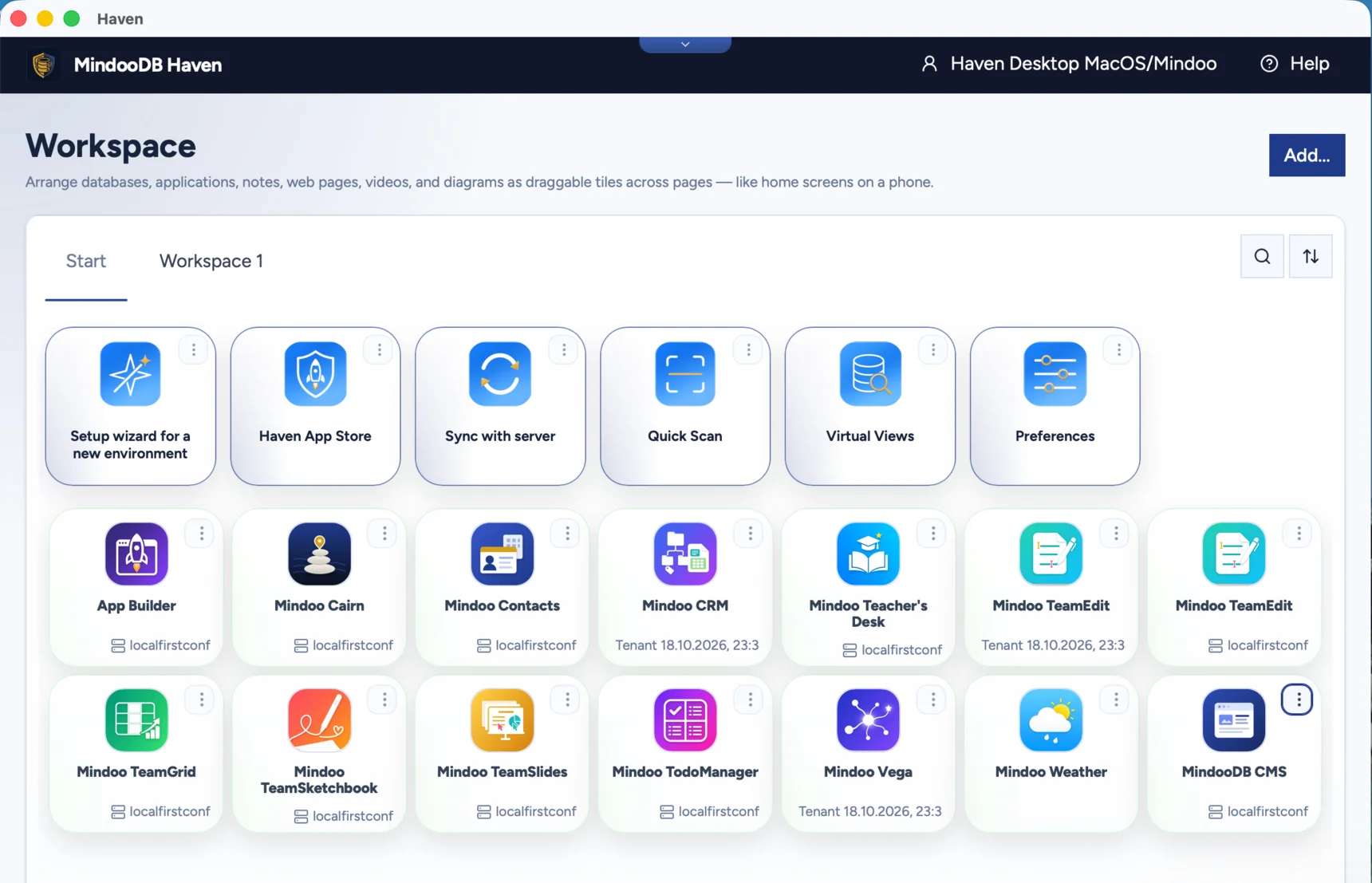
Why a desktop app
Haven in the browser works well, and it stays. But a browser tab is not the best home for a database you want to keep for years.
Your data in a real database. In the browser, Haven keeps its encrypted data in browser storage, which the browser may clear when disk space runs low or when someone clears the site data. The desktop app stores it in SQLite files in the app’s own data folder, the same way our mobile app does. The data stays encrypted as before; only the place where it lives changes.
Works offline. Haven itself is part of the desktop app, and the apps you install are kept on your disk, so Haven starts without a network connection. Sync with your servers resumes when you are back online.
AI agents on your own computer. The desktop app has the MCP connection for agents built in, more on that below.
Everything the browser does not allow. Some web sites refuse to be shown inside other pages. In Haven’s web tiles they stayed blank in the browser; the desktop app shows them in a native view laid over the tile, with the site’s own cookies. Files for agents go through an exchange folder you pick with the system dialog, and passkeys work through the system’s own passkey dialog on macOS 15 or later and through Windows Hello on Windows: the same passkeys for haven.mindoodb.com that the browser version and our iOS app use.
Built on Tauri 2
Haven Desktop is built on Tauri 2. Tauri combines a small native program written in Rust with the web view the operating system already has: WebKit on macOS, Microsoft Edge WebView2 on Windows. Unlike Electron, it does not ship its own copy of Chromium. That keeps the downloads small, under 50 MB for each platform, including Haven itself. The apps you use in Haven are installed later from the Haven App Store, as in the browser.
The interesting part was making a web application that grew up in the browser feel at home in a native shell, without forking it. Haven itself is the same web build that runs at haven.mindoodb.com. The Rust side provides what the browser would otherwise do: it serves Haven and its apps from custom URL schemes, gives each installed app its own origin so the sandboxes stay apart, and answers MindooDB’s storage calls with SQLite. MindooDB’s storage code is unchanged; only the bottom layer that talks to SQLite is new.
It updates itself
There are two kinds of updates, and the app handles both on its own:
- Haven itself, the web build with all the apps, comes from the same signed update channel as our mobile app. The app checks the signature before it uses a new build, so Haven’s new features reach the desktop without a new installer.
- The desktop app around it checks for a new version after start and then every six hours, downloads it in the background and verifies its signature. A banner then offers to restart now or later. You decide when; nothing restarts while you are working. You can also check right away from the app menu on macOS or the tray icon on Windows.
The portable Windows ZIP is the exception: it never installs anything, so it does not end up next to an installed copy. When a new version is out, it points you to the downloads page.
Agents connect without an open port
In the previous post I described how we made twelve Haven apps usable by AI agents through WebMCP, and that the desktop apps would have the MCP connection built in. That is what you get now.
Next to the app sits haven-mcp, a small command that MCP clients such as goose, Claude Code, Claude Desktop, Codex, Cursor, VS Code or LM Studio start like any local MCP server. It talks to Haven through a Unix socket on macOS or a named pipe on Windows that only your user account can open. There is no Chrome, no extension, no Node.js and no TCP port.
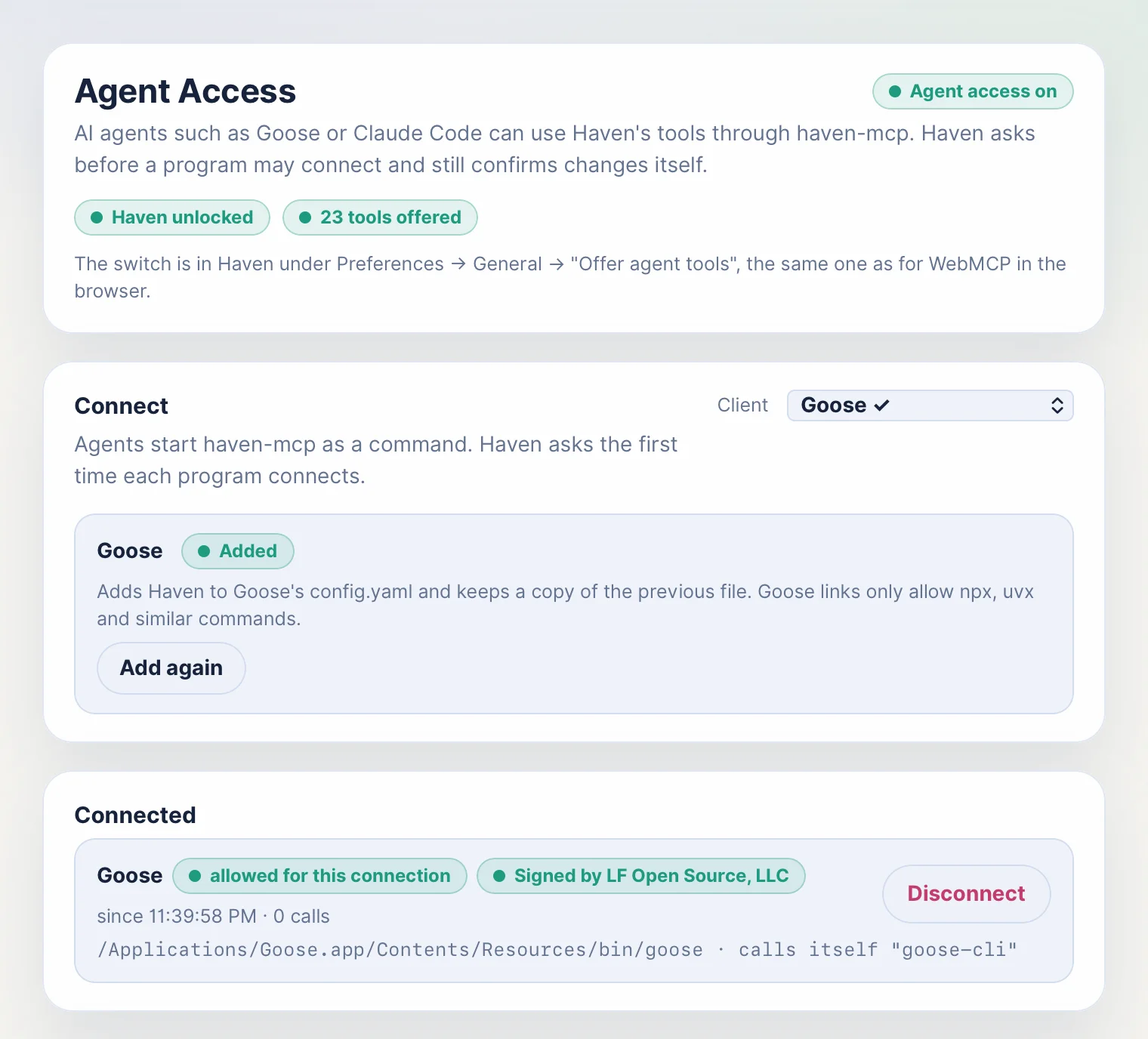
- Off until you switch it on. The same switch in Haven’s preferences that offers agent tools in the browser controls the desktop connection. Switching it off disconnects every agent.
- Setting up a client takes one click or one command. The Agent access window writes Haven into the configuration of goose, Claude Desktop and Codex and keeps a copy of the old file, opens the install link of Cursor, VS Code and LM Studio, and shows the command to copy for Claude Code, Gemini CLI and others.
- Haven asks who is connecting. The answer comes from the operating system, not from the client: Haven identifies the program that started
haven-mcpby its path and code signature. Signed programs can be allowed for good; interpreters and unsigned programs only for one connection. - You see what happens. The same window shows the connected agents and every tool call with duration and size. Arguments and results are only recorded when you switch that on.
Haven still asks you before any tool that changes your data, and every change an agent makes can be undone, as described in the previous post.
iOS and Android: in testing, and you can join
Haven for iPhone, iPad and Android is in active testing. The mobile apps run the same Haven, store your data locally in SQLite and update Haven over the same signed channel as the desktop app. They do not offer agent tools.
If you would like to try them before they reach the App Store and Google Play, write to info@mindoo.de and tell us which platform you use. We will invite you to TestFlight for iOS or to Firebase App Distribution for Android.
Try it
- Download Haven Desktop for macOS or Windows from the downloads page.
- Prefer not to install anything? Haven keeps running in any modern browser at haven.mindoodb.com.
- To connect an agent, switch on agent tools under Preferences → General and open Agent access.
If you try it, I would like to hear how it works on your machine, and what is missing.