Karsten Lehmann 11 July 2026 15:06:00
We have shipped a lot of sample apps to show what MindooDB and Haven can do. This post is about something different: a full, commercial product that we built on the very same platform - partly as a “drink your own champagne” exercise, and honestly, partly to help my wife, who is a teacher herself.
It is called Mindoo Teacher’s Desk, and it is the most complete app we have put on Haven to date.
Why a teacher, of all people, needs a private workspace
Teachers work with some of the most sensitive data there is: children’s names, their grades, observations about their behaviour and development, notes on support needs, minutes of conversations with parents. That data deserves to be protected properly - not “we promise we won’t look” protection, but the real kind.
This is exactly where Haven fits. Everything in Teacher’s Desk is stored encrypted, in such a way that even the operator of the server the data sits on cannot read it. Only the teacher, and the devices they have authorised, can unlock it. On top of that it syncs across all your devices - plan at your desk in the browser, add a task on your phone on the way home, use a tablet in the classroom, and it is all the same, current data - and it keeps working offline, in the radio dead-spot classroom in the basement or on a school trip. If you happen to edit the same note on two devices at once, the two versions are merged automatically instead of one silently winning. And because nothing is ever overwritten, older versions of your work stay available.
And it truly is the same app on every screen. The interface is fully responsive - it adapts to everything from a small phone held one-handed in a corridor to a tablet in the classroom to a full desktop browser at your planning table - so you are never pushed to a cut-down “mobile version”. Whatever device is nearest, you get the whole of Teacher’s Desk, laid out to fit.
In other words, all the platform qualities I have been writing about in this series show up here in one place, quietly protecting a teacher’s day.
A teacher’s whole day, in one place
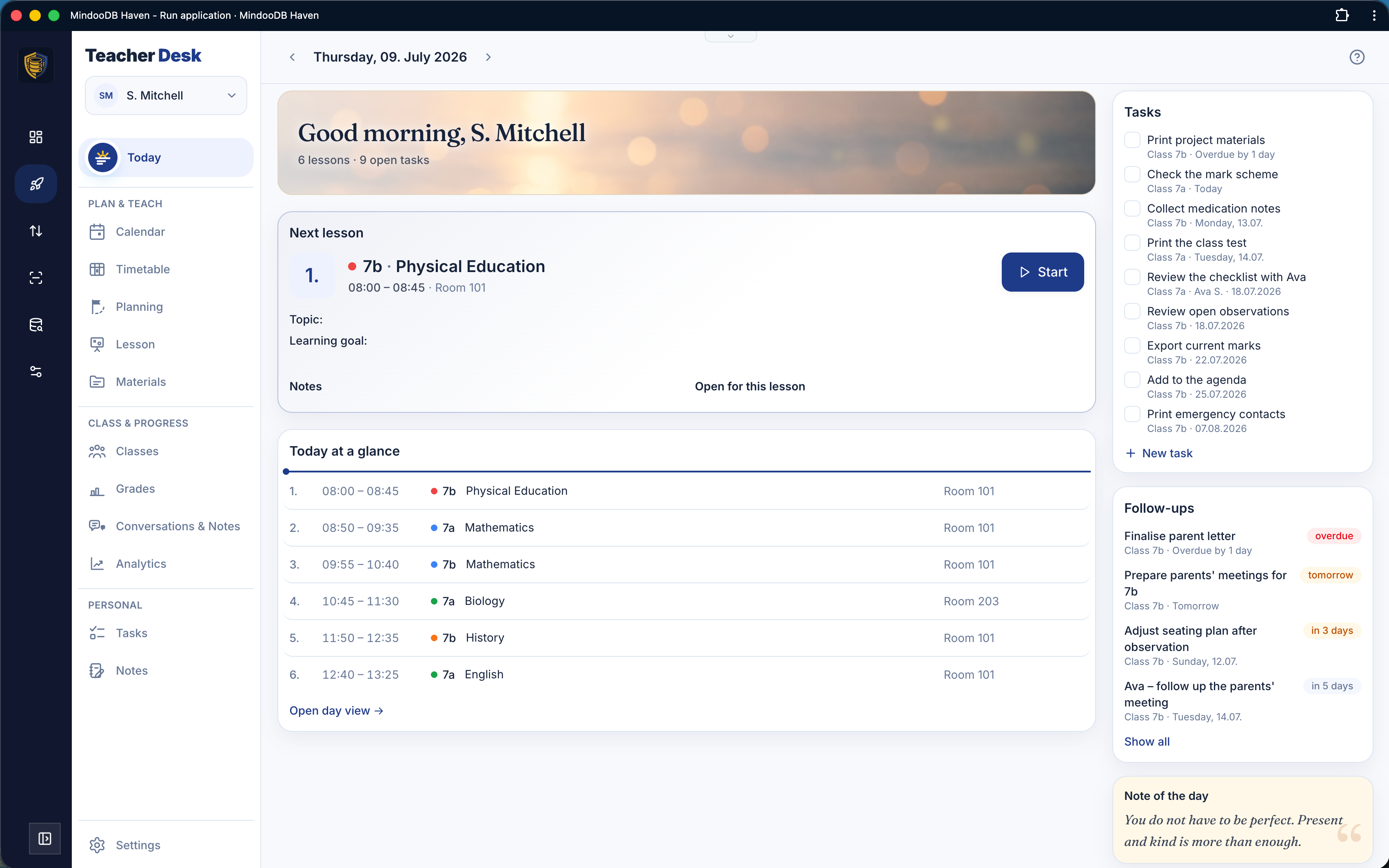
Teacher’s Desk bundles what teachers usually scatter across a calendar, a grade book, folders, spreadsheets and loose notes. It opens on a Today screen: your next lesson, the shape of the day, the tasks that are due, all at a glance.
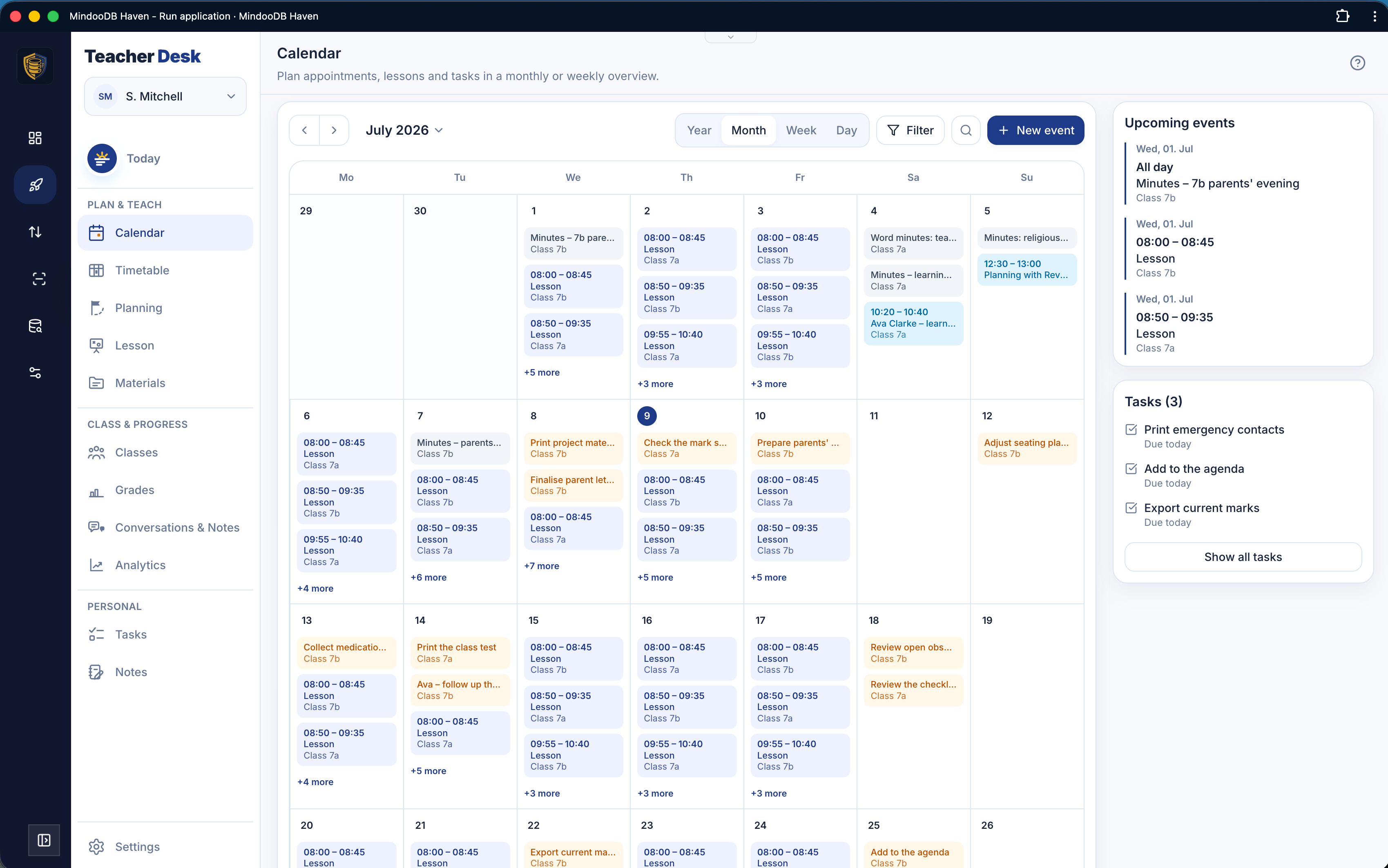
Everything with a date flows automatically into one calendar - lessons, appointments, school holidays, due tasks, planned conversations - so there is nothing to keep in sync by hand.
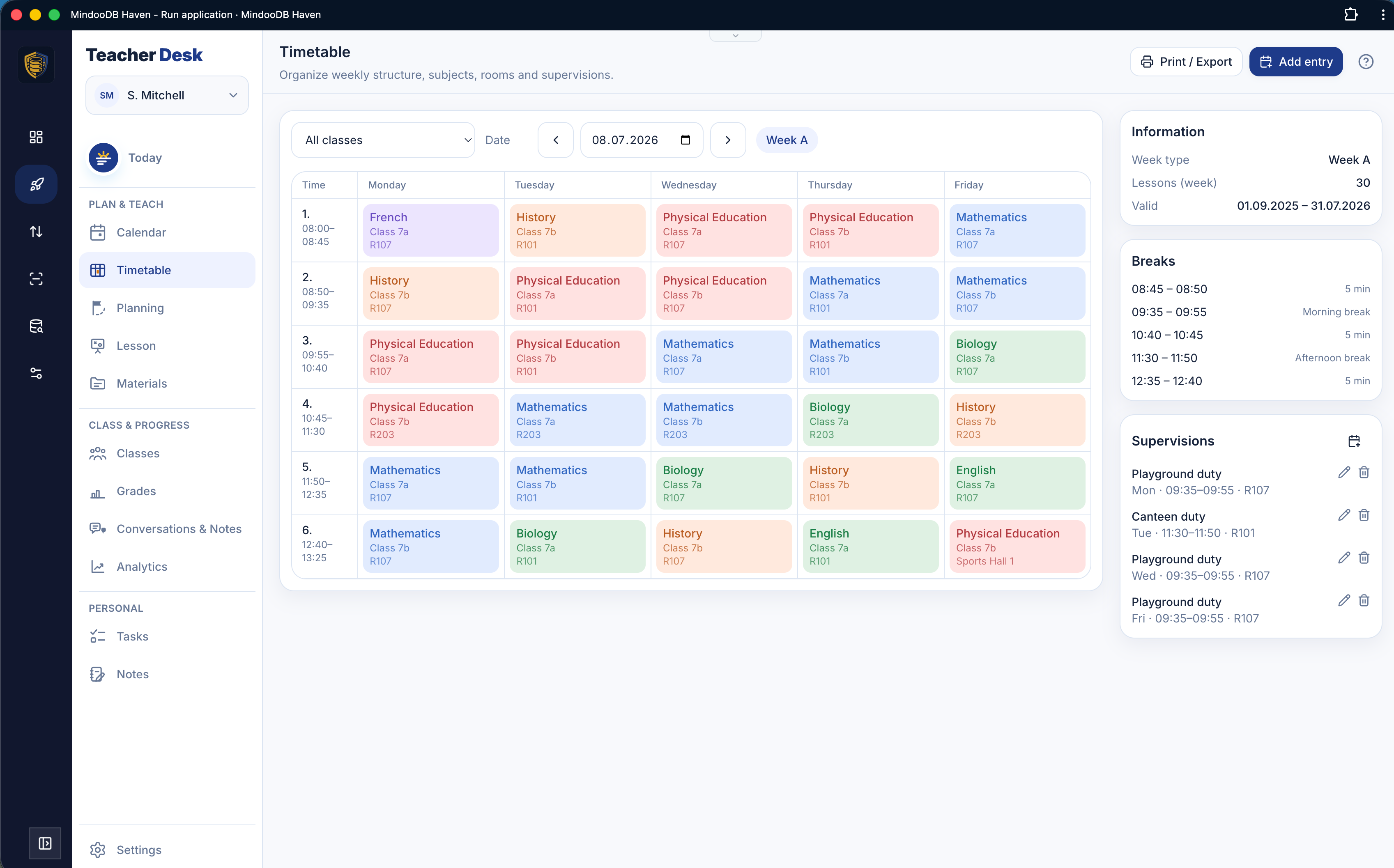
The timetable is set up once as a weekly pattern - which class, subject and room, when - and the concrete lessons appear from it automatically, holidays skipped, without any manual generation. Breaks and supervisions live here too.
From planning a topic to actually teaching it
Teachers think in units - a topic spread over several lessons - and Teacher’s Desk lets you build a unit once, with its goals and materials, then spread it automatically across the coming lesson slots. Reuse it next year with a couple of clicks.
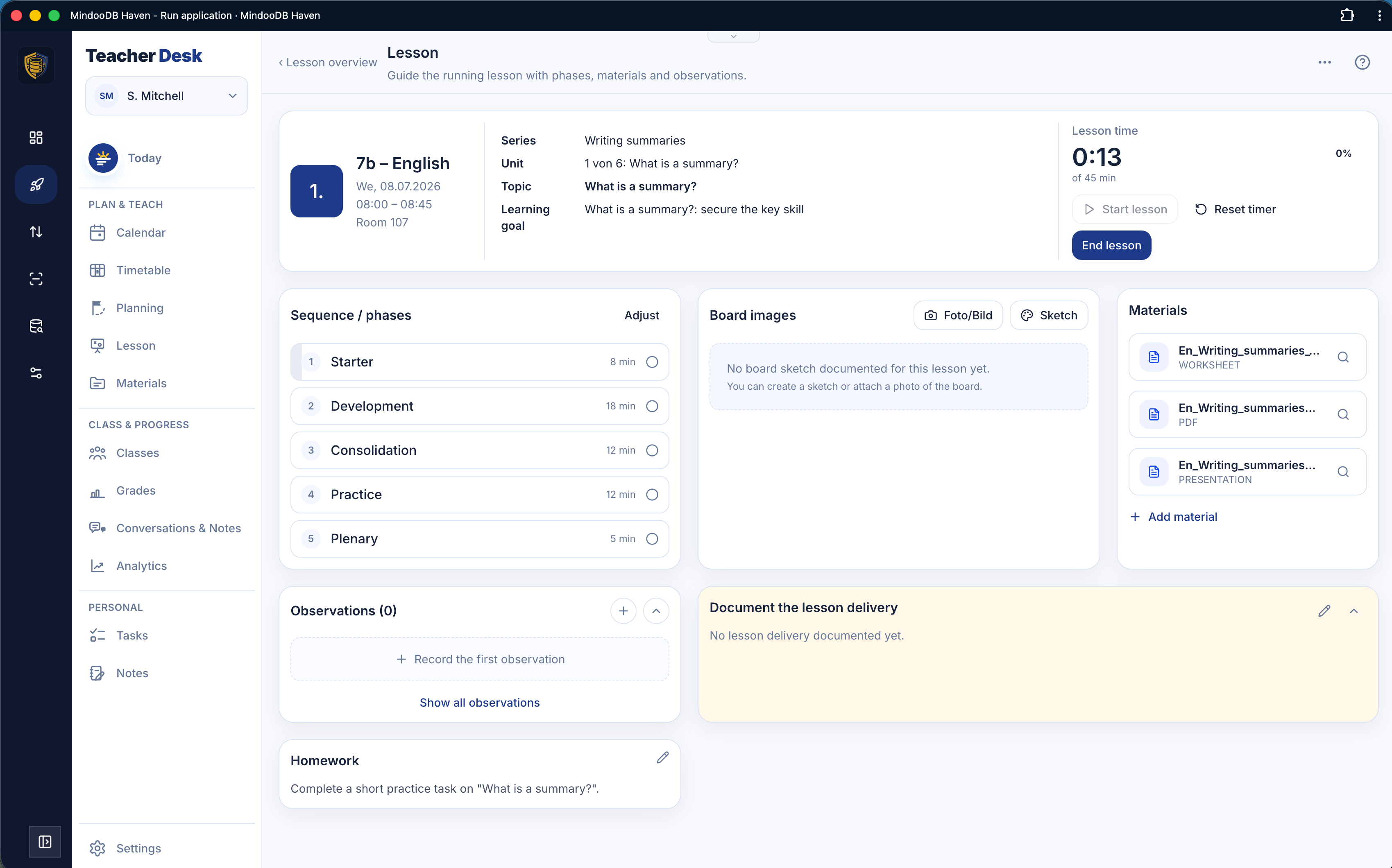
Then there is the lesson itself. The Lesson view carries you from preparation through delivery to documentation, all on one screen: the planned phases with a timer that shows whether you are keeping to time, the board sketch (photograph the board or draw it by hand), the lesson’s materials one tap away, quick observations about individual learners, and a place to note afterwards what was covered and what the homework was.
Materials that stay findable for years
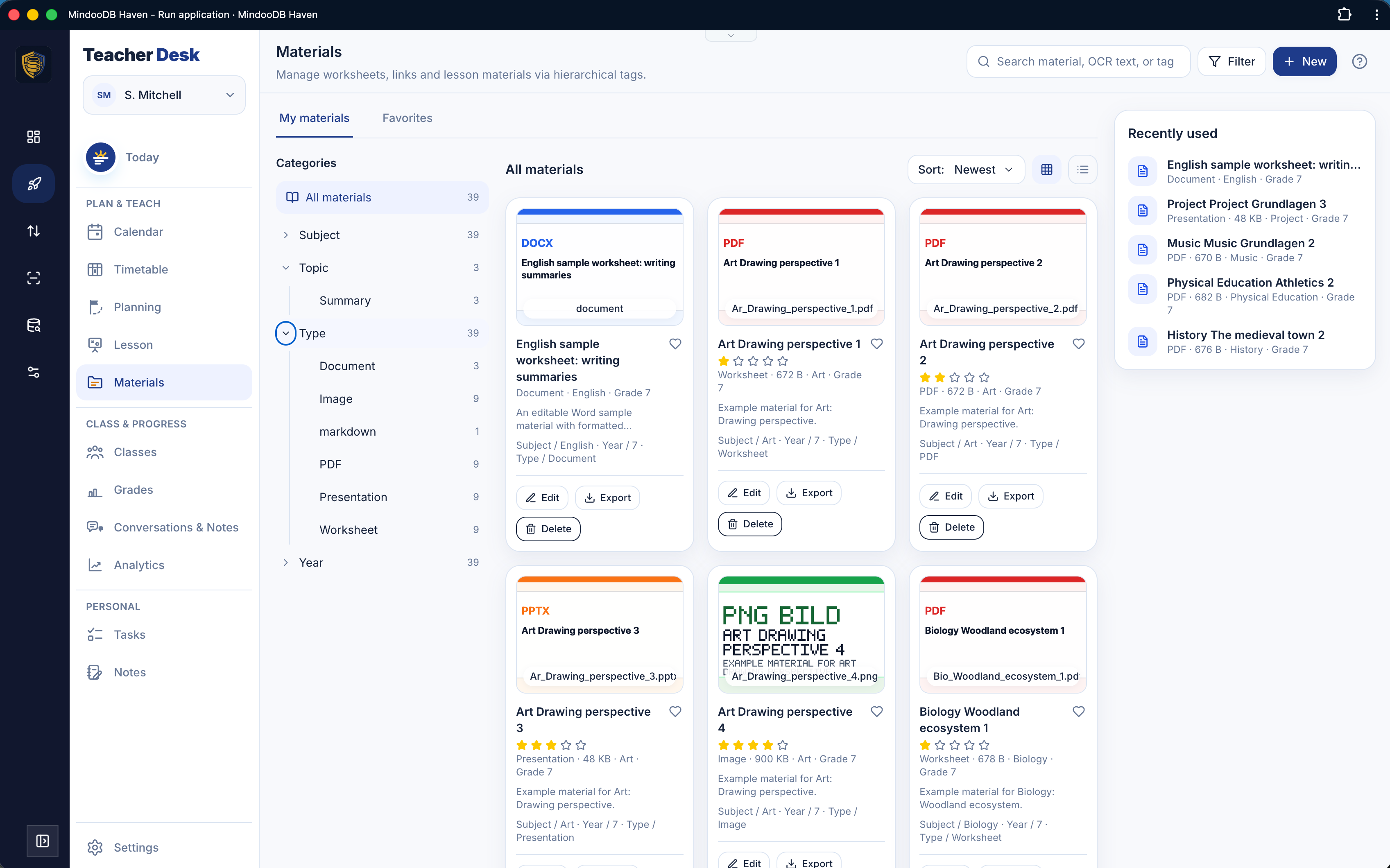
Every worksheet, link, hand-written sketch and document goes into Materials, tagged by subject, type and year. The clever part, tying back to an earlier post in this series: the search looks inside the files too - including the recognised text of scanned or photographed worksheets - so a sheet you scanned two years ago is findable by a phrase printed on it.
Everything about a class
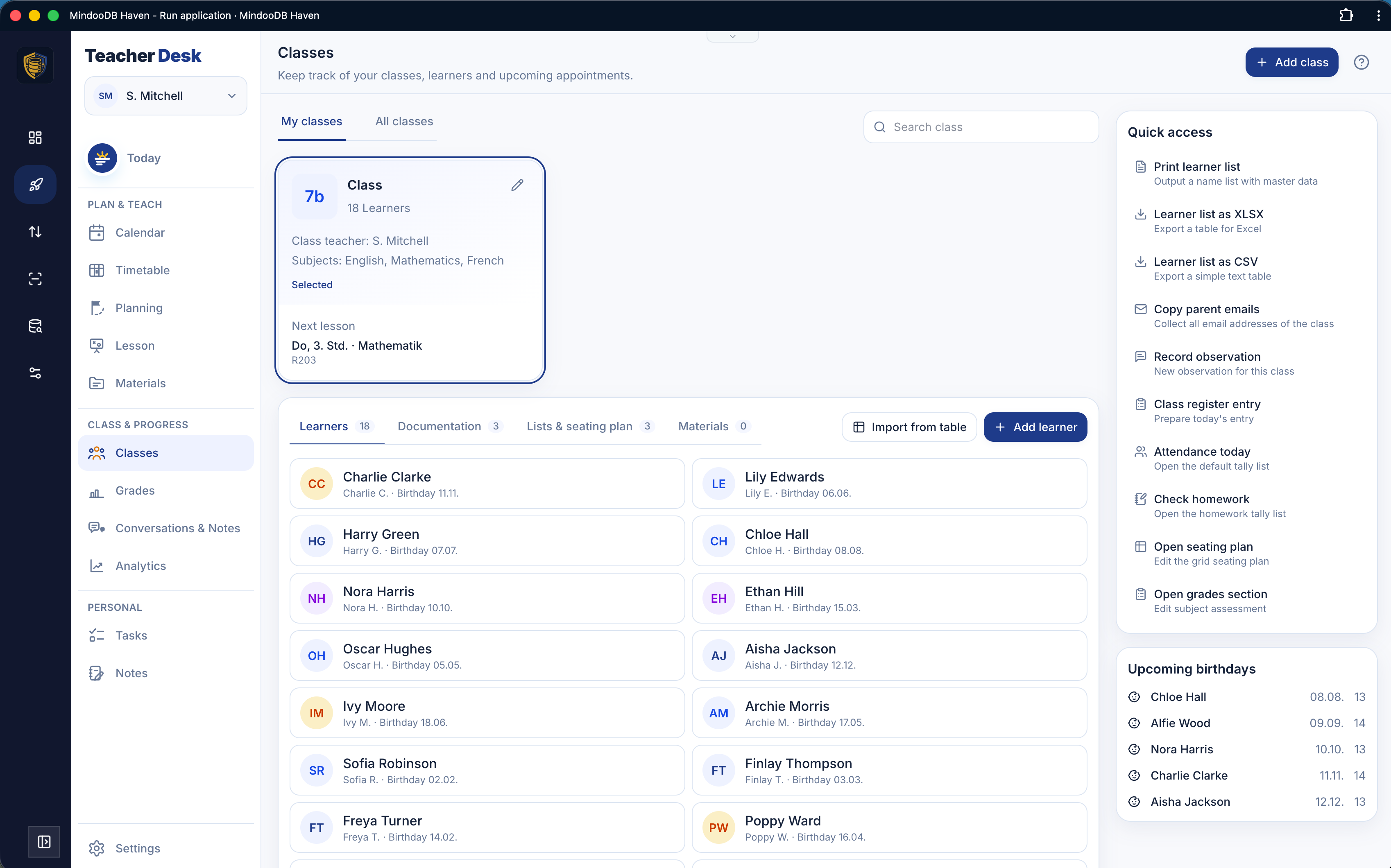
The Classes area is the home for a learning group: contact details for learners and their parents, observations, the class register, custom lists, and seating plans.
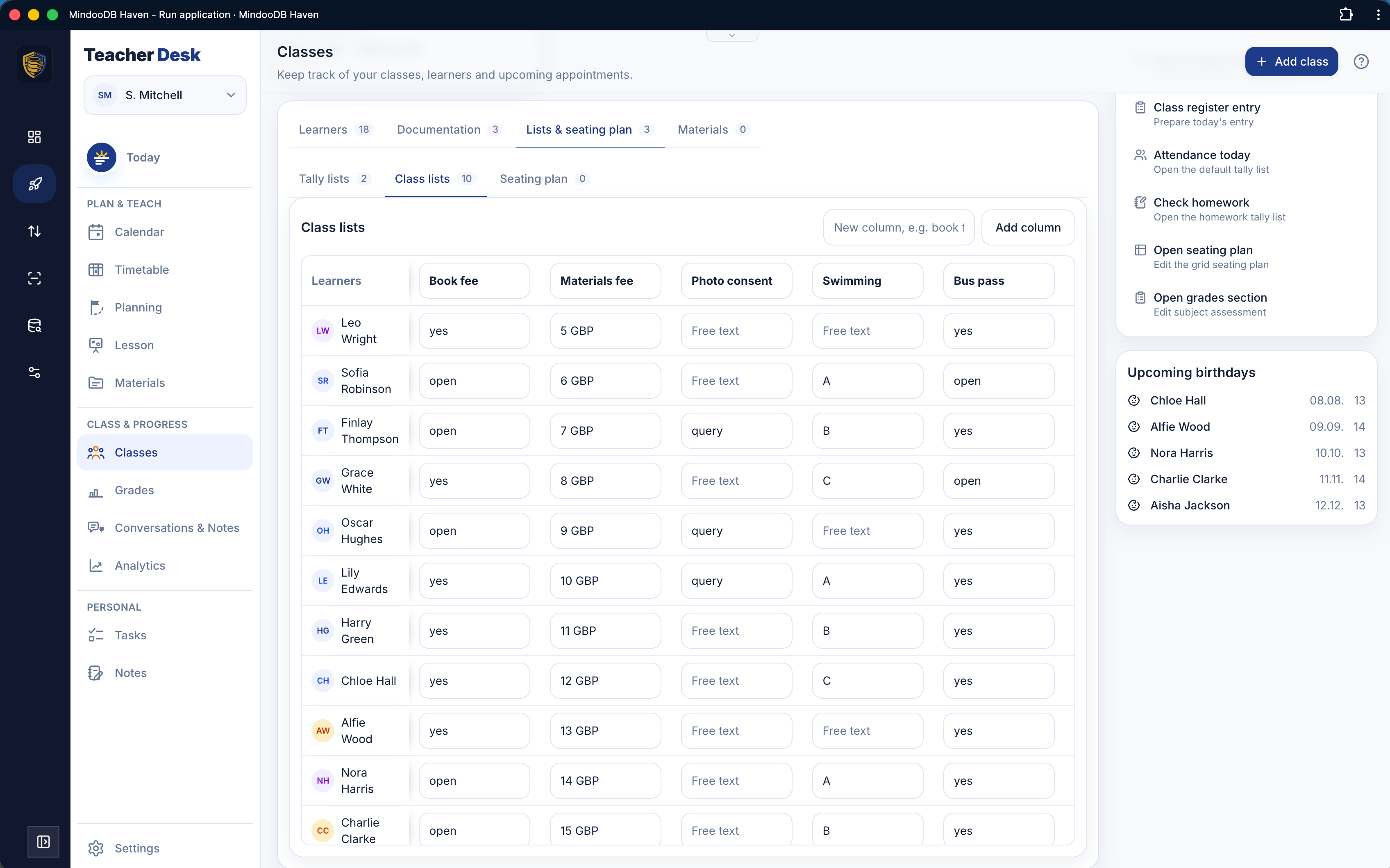
Custom lists let you track anything a class throws at you - paid trip contributions, photo consent, who returned which form - with the totals adding up for you.
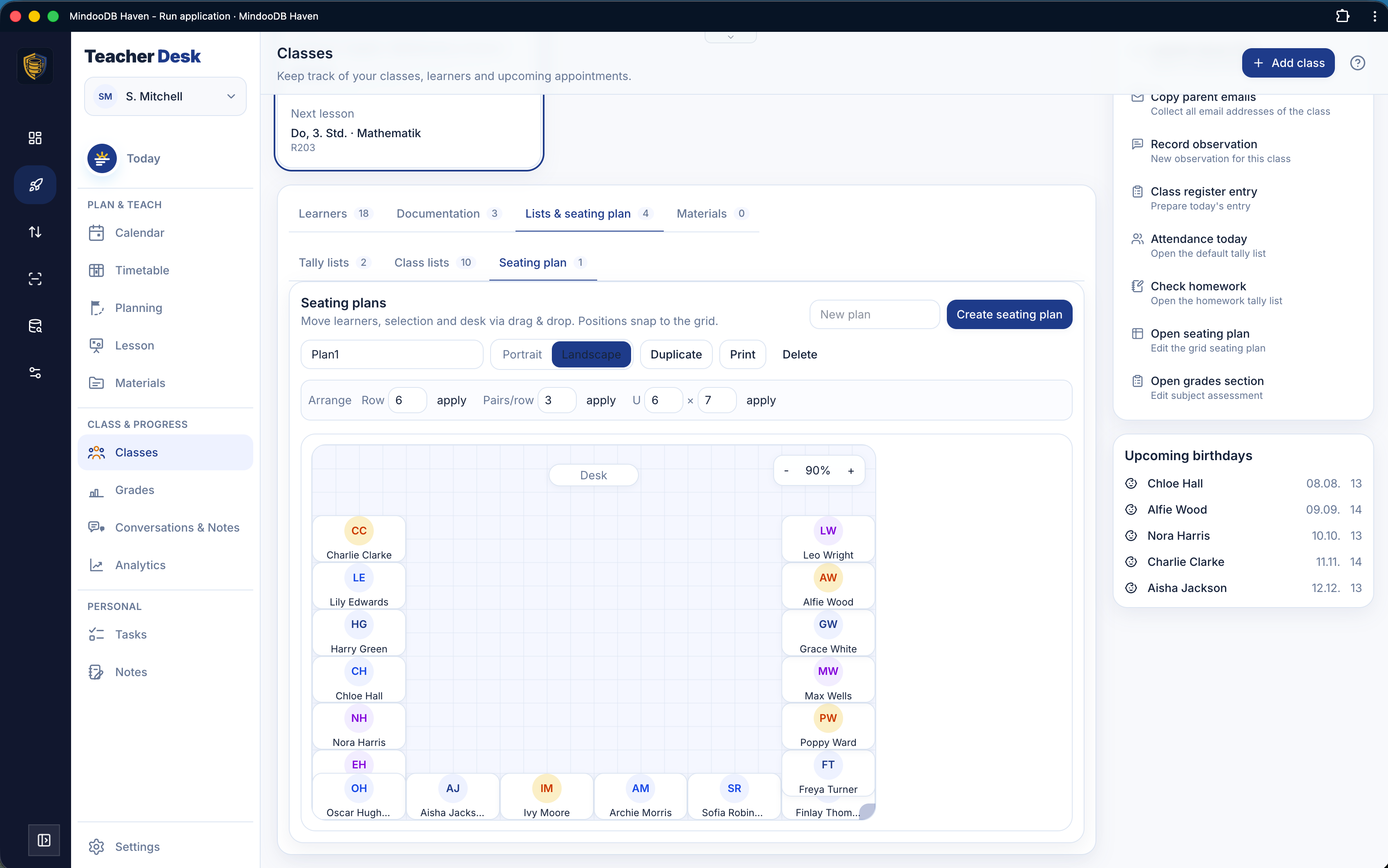
And the seating plan is a proper drag-and-drop grid, with ready-made layouts for rows, pairs and U-shapes; swap two learners with a right-click, and print it for a substitute teacher.
Grades on your terms
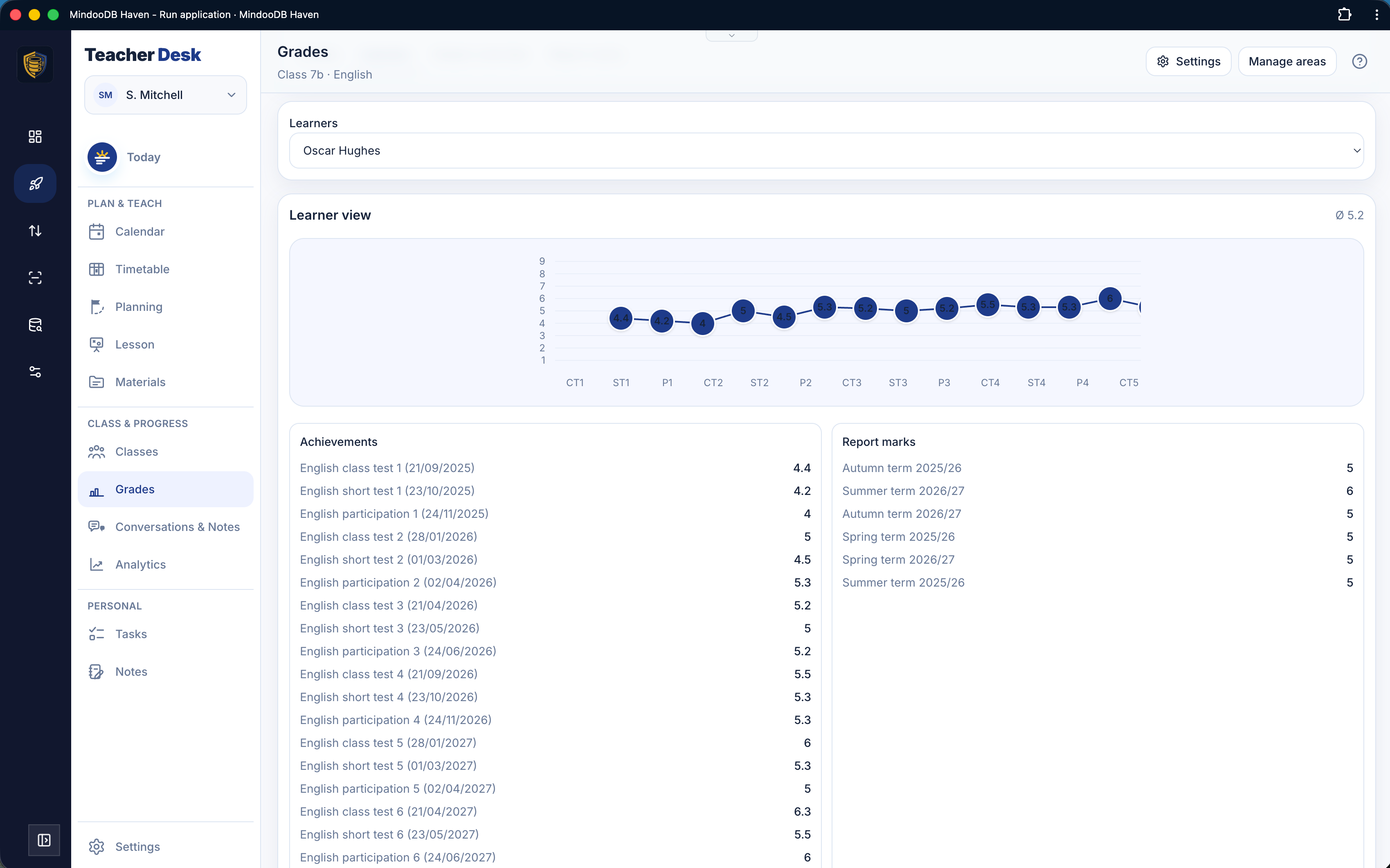
Teacher’s Desk does not impose a grading scheme; you define your own - which categories count, how they are weighted, how the terms combine - and it does the transparent arithmetic, suggesting a report grade you are always free to override. You can watch a single learner’s development over time, and export or print the whole thing.
And an honest look at your own workload
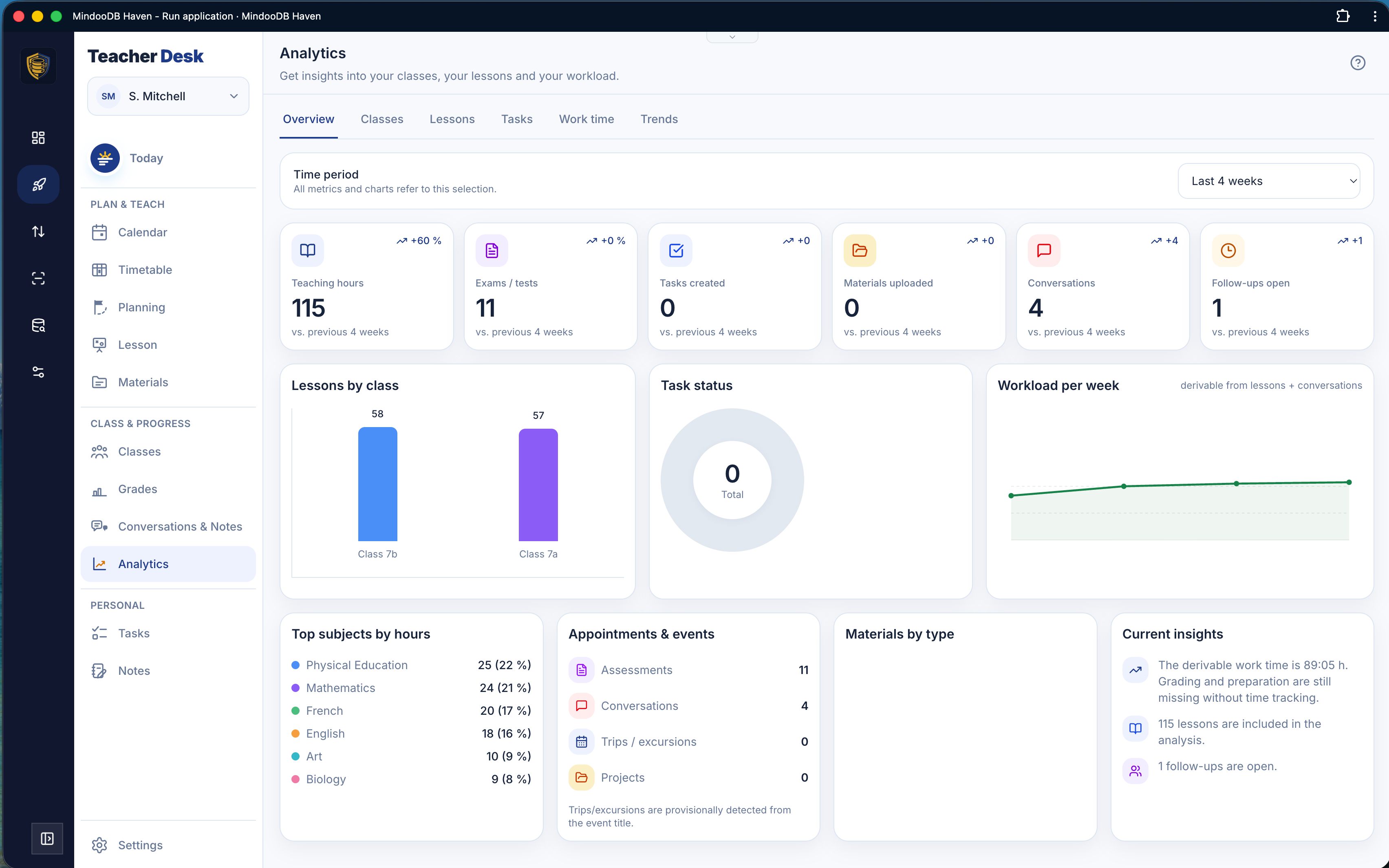
There is even an Analytics area that turns your everyday entries into a picture of your term - lessons taught, tests written, conversations held - and, importantly, your working time, including all the correcting and preparing that usually goes uncounted. It is designed to help teachers see overload coming and push back on it, which is a use of data I am genuinely happy to have built.
Beyond all this there are personal tasks (including multi-step projects like organising a class trip, with templates you reuse each year) and a personal notes area with typed, hand-written and drawn notes - the same drawing editor that became the TeamSketchbook app from the previous post.
A word about writing documents on a phone
Teacher’s Desk uses proper Word/.docx documents in several places - notes, conversation minutes, materials - built on the collaborative document editor we introduced with TeamEdit in May. Since then we have taken an important step: we forked that document editor and are now adding features to it ourselves, rather than waiting on anyone else’s roadmap. The first big one, built specifically for Teacher’s Desk, is editing on phones and tablets - because a teacher standing in a classroom with a tablet needs to write and edit documents right there, not only at a desktop.
A privacy detail teachers will appreciate
One small feature I want to call out: a teaching mode that hides sensitive content - learners’ names, grades - so you can safely project Teacher’s Desk onto the classroom beamer without exposing anyone’s private data to the whole room. Privacy that is built in, right down to the everyday moment of showing something on the big screen.
In eight languages, one click to try
Teacher’s Desk ships in eight languages - English, German, French, Spanish, Italian, Dutch, Norwegian and Polish - which is what prompted us to bring Haven itself up to the same eight languages. Setting it up is a single click from the Haven App Store, and it comes with a demo data set so you can walk through the whole app with realistic content before entering anything of your own.
What it costs, and how to get it
Mindoo Teacher’s Desk is a commercial application, but it is not sold on its own. Access to it comes with MindooDB Cloud - the private, end-to-end encrypted home we run for your data, the thing that makes the syncing and the offline work in the first place. And that subscription covers every Haven app, not only this one: the same price that buys a teacher’s whole working day also buys TeamSketchbook for the drawing, TeamGrid for the spreadsheets, TeamEdit for the documents, Vega for the brainstorming and planning, and whatever we ship next.
It is €7.99 per user per month, or €79.99 per year, both including VAT - the yearly plan works out at around €6.67 a month. Teams from five people upwards have their own packages. What exactly is included, how the 200 GB of storage per person works, and why accounts used purely for administration cost nothing, is all laid out on the pricing page.
Trying it costs nothing, and needs no card: the one-click install and the demo data set described above are the whole trial. There is now a dedicated site as well, going through the app in detail in all eight languages - teachers-desk.com.
It is, in a real sense, the proof of everything else in this series: a genuine, day-to-day product carrying deeply sensitive data - built entirely on the encrypted, offline-first, your-data foundation of MindooDB and Haven.
The last post in this catch-up looks under the hood at the platform work that made this summer possible: a faster, leaner sync and a printable way to recover your whole workspace from paper.