Karsten Lehmann 25 August 2026 14:00:00
Two things in this release change what the first minute with Haven feels like, and what the tenth device feels like.
The first is that you can stop typing a password. The second is that the workspace you arranged on one machine can now be waiting for you on the next one.
Signing in with your face
Haven has always kept your user identity - the small, protected file holding your private keys - locked with a password that never leaves the browser. No server ever sees it, nobody can reset it for you, and that is the point. It is also a password to type every time you start Haven, because the unlocked state only ever lives in memory - reload the tab and it is gone.
Now there is a second way in: a passkey. Face ID, Touch ID, the fingerprint reader on your laptop - whatever your device already uses to recognise you.
If you already use Haven, you do not have to go looking for it. The next time you unlock a user id with your password, Haven asks whether it should set up a passkey on this device. Say yes, confirm with your face or finger, and from then on that id opens with a tap. Your password keeps working exactly as before - the two live side by side, and you can add a passkey on every device you use.
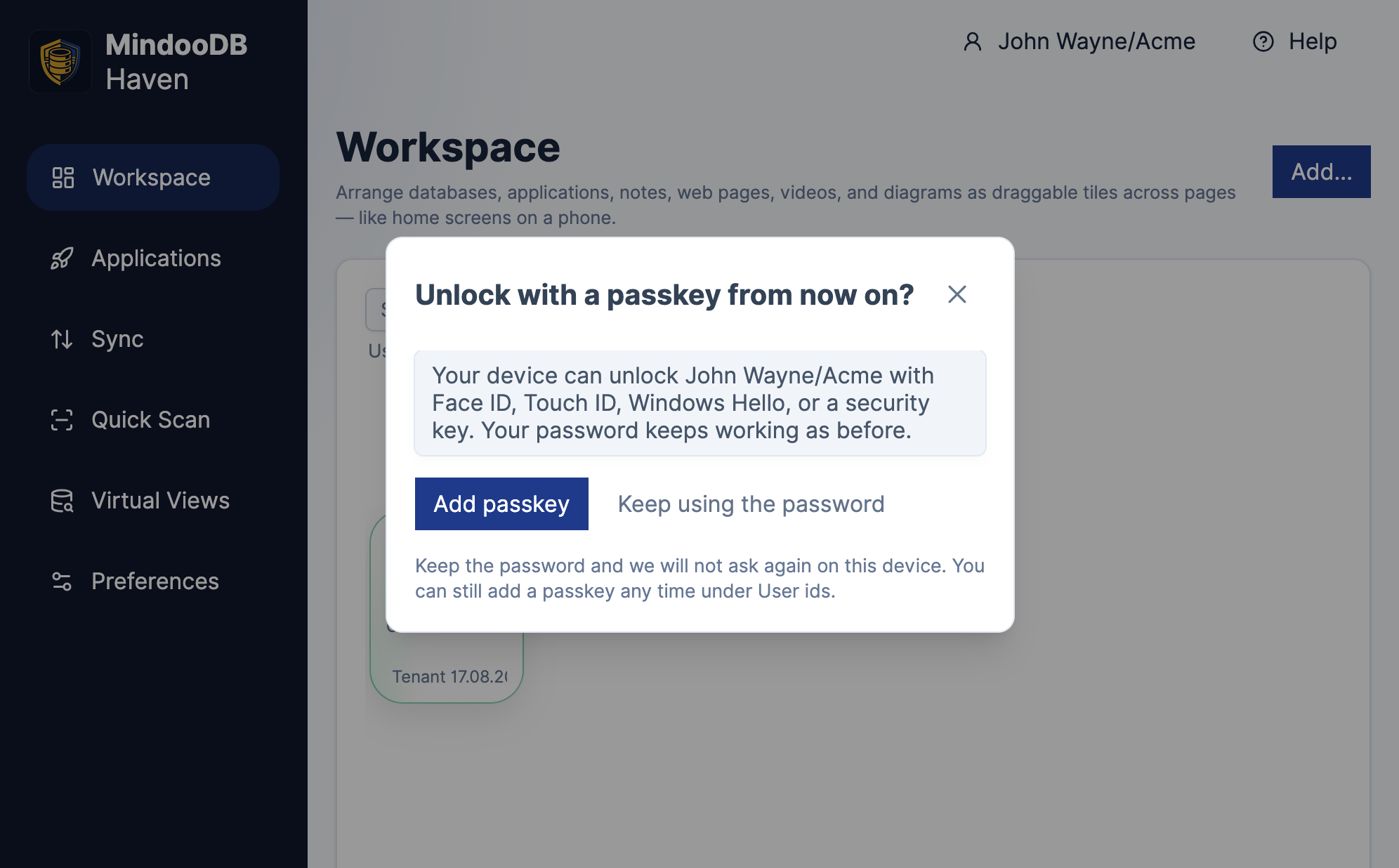
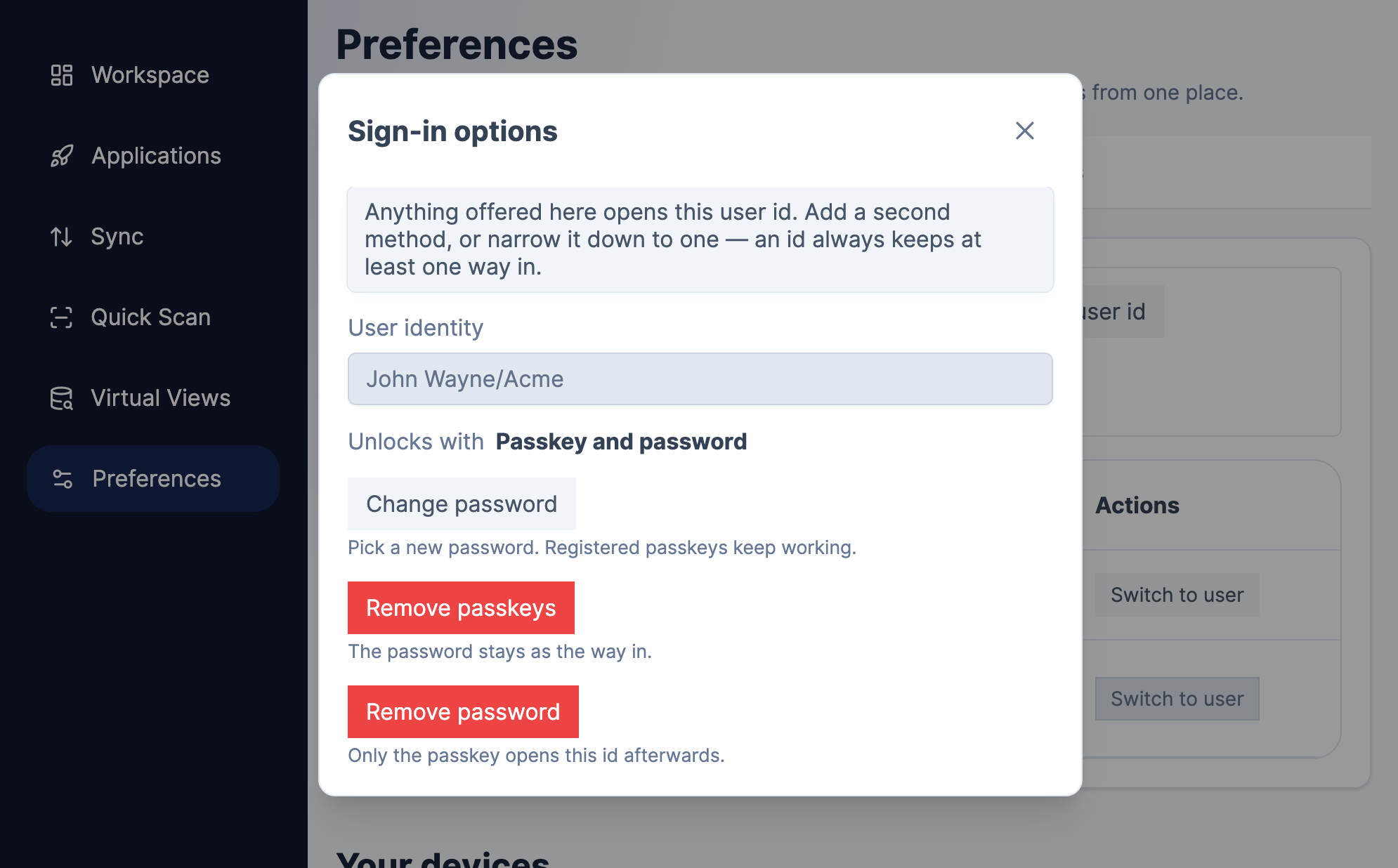
Once you are confident it works, you can go further. Under Settings → User ids, the sign-in options for an id let you remove the password and leave only the passkey. At that point Haven is genuinely password-free for that person: biometrics and nothing else.
For anyone starting fresh, the passkey option is now preselected when a user id is created, wherever the browser can actually do it - on a device that cannot, Haven quietly stays on the password. The typical new user never chooses a password at all.
What a passkey actually does here
It is worth being precise, because a passkey in Haven does something slightly unusual.
Everywhere else on the web, a passkey is a login: your device signs a challenge and a server decides you are you. Haven has no server-side account to log in to - there is nothing to sign in to. So Haven uses the passkey as a key-wrapping device instead. Through a WebAuthn extension called PRF (hmac-secret on the authenticator), the authenticator returns 32 random bytes that only that credential can reproduce, and Haven uses those bytes to lock the key that unlocks your identity file.
The consequences are the ones you want. The secret never leaves the authenticator, so it is not in Haven’s storage and not on any server of ours. And because the wrapping happens locally, this works exactly the same on a Haven you host yourself, offline, on a machine that has never spoken to us.
Not every device can do it
PRF is a young extension, and how much of it a browser and operating system implement varies. Haven therefore checks before it offers you anything: where the combination cannot produce the secret, the passkey option is simply not there, and the password path stays exactly as it was. If a credential is created but comes back without a PRF secret, Haven refuses it and points you at the password rather than leaving you with a passkey that half works.
One property to keep in mind wherever it does work: a passkey is bound to the address Haven runs under. A credential created for haven.mindoodb.com will not offer itself on a different hostname, which is the same rule that stops a phishing site from harvesting it.
Before you remove the last password
If a passkey is the only way into an id, then losing every device that holds it means losing the id. Haven’s answer is the encrypted browser backup: the file it produces carries a copy of your identity that opens with a backup password, so a new device can be brought back to life even if the authenticator is gone. Make one before you remove the password, and keep it somewhere sensible. Haven says as much in the confirmation dialog, but it bears repeating in a blog post.
The administrator, on purpose, still types something
There is one place where none of the above applies, and it is not an oversight.
An administrator id cannot be protected with a passkey. An administrator whose credentials only exist inside the secure enclave of one laptop is an administrator you lose together with that laptop - precisely at the moment you need them, on the replacement machine, restoring from a backup. Tenant administration is the role that has to survive the hardware.
So when you set up Haven, the administrator id gets a secret you can write down and store where you keep other emergency credentials. By default Haven generates a passphrase for you - random words, stronger than what most people invent, and you only have to note it down once. If you would rather use something from the password manager your organisation already runs, you can choose your own password instead. Either way it is a secret that exists independently of any single device.
Taking your workspace with you
The other half of this release is for people with more than one device, and it is available in Haven Enterprise.
Everything in Haven already syncs: documents, attachments, history. What did not travel was the arrangement - the tabs you set up, the tiles you placed on them, and the list of apps you installed. Set up a new laptop and you rebuilt all of it by hand.
Workspace roaming fixes that. In the preferences you tick one box, pick the tenant the layout should travel through, and give it a name. From then on your tabs, tiles and installed applications are kept in step across your devices, and a new device that adopts the same name arrives fully furnished.
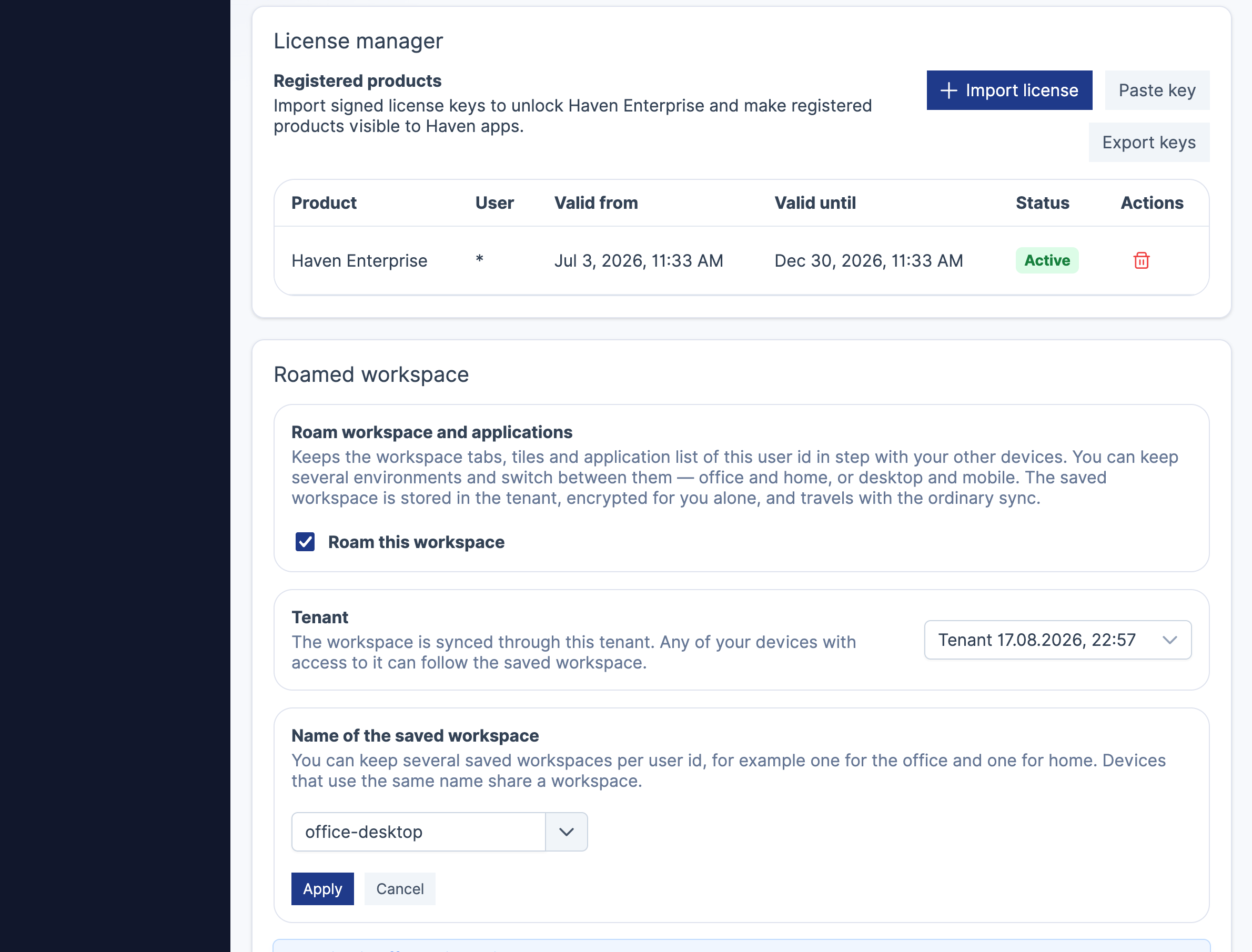
The interesting part is what protects it. The roamed layout is stored as a document encrypted with your user key - the personal key we introduced last week - so it is readable by you on every device you have approved, today and on the ones you have not bought yet, and by nobody else. Not your colleagues, not the tenant administrator whose server carries it, not the server operator. The tenant is the transport, not the audience.
When two devices change the layout at the same time - you drag a tile on the desktop while your tablet is offline - the two versions are merged with Automerge, the same CRDT machinery MindooDB uses for document contents. There is no “last device to sync wins”, and there is no conflict dialog.
More than one layout, on purpose
You can even create several named layouts, and each device follows whichever one you point it at.
A phone screen and a 34-inch monitor do not want the same arrangement. So keep a layout called mobile that all your phones and tablets follow, with a handful of large tiles, and a desktop one shared between your browsers on real screens, dense and multi-tabbed. Each set of devices stays in step with its own kind, and switching a device from one to the other is picking a different name from a list. The same trick works for contexts rather than screen sizes - office and home, or a layout you only use while teaching.
What a Haven workspace actually is
All of which is more interesting than it sounds, because the Haven workspace is not what “workspace” usually means.
On a phone home screen - and, let’s say, on certain groupware platforms whose workspace tabs a lot of us spent the nineties rearranging ;-) - a workspace is a grid of icons. Each one is a door. You tap it, something opens full-screen, and the workspace itself has told you nothing.
Haven’s tiles can be doors too. But they can also be the thing itself. A tile can run a MindooDB app embedded, right there on the tab: a Mindoo Vega mind map or Kanban board, a sketch from Mindoo TeamSketchbook, a Markdown or Word document being edited collaboratively in Mindoo TeamEdit. Those apps do what Haven apps do - pull data together across database and tenant boundaries, the way virtual views do - and visualise it in whatever shape suits the data. The tiles are responsive, so the same app renders sensibly whether it has a quarter of a phone screen or half a desktop.
Around them sit the other tile types. Formatted text in HTML, which is how most people end up maintaining a small board of links and notes. Web content in an iframe, with the sandbox permissions under your control. YouTube videos. Mermaid diagrams, kept as source and rendered live, which is a very pleasant way to keep an architecture sketch or a process next to the data it describes. Plus, of course, database tiles and app launchers, grouped and spread over as many tabs as you want.
So a Haven tab can be a working surface: today’s Kanban board next to a live diagram next to a linklist next to the two databases you actually open. That is the thing that now follows you between devices - and the reason it was worth building roaming for.
Getting it
Passkeys are in Haven for everyone, Community included, and existing installations will ask about them at the next password sign-in. Workspace roaming is a Haven Enterprise feature. Its panel is present in every edition - Preferences → General → Roamed workspace - but the Roam this workspace checkbox stays disabled until a licence is registered.
Haven Community remains free to use for private and commercial projects at haven.mindoodb.com. MindooDB itself is open source under the Apache 2.0 licence, and everything else is at mindoodb.com.