Karsten Lehmann 29 September 2026 09:00:00
The last two articles were about large, single features: peer-to-peer sync and the App Builder. This one is about everything that happened around them - the work that does not get a launch of its own, but that you notice the next time you open Haven and something is faster, or undoable, or simply there.
It is a long list, so it is sorted by layer: the database first, then Haven itself - which lost its sidebar - and the workspace, the App SDK, the App Builder and the App Store, and finally two of the apps.
MindooDB: four new data types
A MindooDB document is an Automerge document underneath, and until now the values an application could write were essentially JSON: strings, numbers, booleans, lists and objects. JSON is a fine format and a poor description of intent. A number does not say whether it is a quantity somebody sets or a tally everybody adds to. A string does not say whether it is prose two people might edit at once, or an identifier that must never come out half one value and half another.
Automerge has had the vocabulary for this all along, and MindooDB now exposes it through a small factory, MindooValue:
import { MindooValue } from "mindoodb";

const doc = await db.createDocument({
  initialValues: {
    title: "Replace the pump in hall 3",
    status: MindooValue.atomic("pending"),
    confirmations: MindooValue.counter(0),
    reportedAt: MindooValue.timestamp(new Date()),
  },
});

await db.changeDoc(doc, (d) => {
  d.incrementCounter("confirmations", 1);
});
The values are tagged plain objects - { "$mindoo": "counter", "value": 0 } - so they survive postMessage, RPC and persistence, and apps on the App SDK can produce them without the MindooDB library. On read they come back as what you would expect: a string, a number, a Date.
Atomic strings (MindooValue.atomic, Automerge’s immutable string). A plain string in MindooDB is collaborative text, which is exactly right for a description field and exactly wrong for a status. If two people change "open" concurrently, one to "closed" and one to "blocked", character-level merging can interleave the two edits into something that is neither word. An atomic string is replaced as a whole: one of the two values wins, and it is a valid value. Use it for status and enum values, identifiers, URLs, hashes - anything that is a token rather than prose.
Counters (MindooValue.counter). Two devices read a counter at 4 and each add one while offline. With a plain number, both write 5 and the merge keeps one of them: 5, and one increment is lost. With a counter, the merge sums the increments: 6. That is what you want for votes, stock movements, confirmations, “seen by” tallies and anything else that several people bump at once. You create the counter once and change it only with incrementCounter() (or a counterIncrement operation in a JSON patch), because writing a new counter value is an assignment and does not merge.
Timestamps (MindooValue.timestamp). Until now a date in a document was a number or an ISO string by convention, and every app had its own convention. A timestamp is a real date type in the CRDT: it accepts a Date, epoch milliseconds or an ISO 8601 string, reads back as a Date from getData(), and is presented as an ISO string to JSON hosts such as Haven and the App SDK. Sorting, comparing and indexing no longer depend on everybody having agreed on a format.
Text cursors. This one needs its own section.
Text cursors, and what they are for
A position in a text is normally an index: character 120. That works until somebody types a sentence in front of it, and then character 120 is somewhere else. In a collaborative document, where other people are typing while you read, an index goes stale almost immediately - and a stored index goes stale for good.
A text cursor identifies a character rather than a position. It is an opaque string that keeps pointing at the same spot while text is inserted or deleted before it, on this device or any other, and you turn it back into an index whenever you need one:
// Anchor a comment to characters 120 to 163 of the body
const { cursors } = await db.getTextCursors(doc, ["body"], [120, 163]);

await db.changeDoc(comment, (d) => {
  const data = d.getData();
  data.anchorStart = MindooValue.atomic(cursors[0]);
  data.anchorEnd = MindooValue.atomic(cursors[1]);
});

// Later - after other people have edited the text
const { positions } = await db.resolveTextCursors(doc, ["body"], cursors);
const range = { from: positions[0], to: positions[1] + 1 };
Two details in there are deliberate. The cursors are stored as atomic strings, because a cursor is a token and must never be merged character by character. And the range is anchored on its first and last character, with one added to the resolved end, so text typed right after the range does not silently extend it. If the character a cursor points at is deleted, it resolves to where that character used to be, so an anchor degrades gracefully instead of breaking.
That is a small API with a long list of uses:
- Comments on a passage. The classic case. A comment on “the second paragraph of the contract” should still sit on the same words after three colleagues have edited the paragraphs above it. The comment is its own document with its own permissions; the anchor is two cursors.
- Highlights and annotations. A teacher marks a phrase in a student’s essay, a reviewer highlights a risky clause, a researcher tags a quote in an interview transcript. All of them outlive the next round of edits.
- Bookmarks and “continue reading here”. Store where somebody stopped in a long document, and it is still the same sentence tomorrow, even if the chapter before it grew by a page.
- Links to a passage. A task, a chat message or a mind-map node can point at a specific paragraph in a specification rather than at the document as a whole.
- Review and suggestion workflows. A suggested change - by a person or by an AI agent - anchors to the text it proposes to replace. If the text around it moves while the suggestion is waiting, it still lands in the right place.
- Collaborative selections. Showing where the other people in a document are, or which range somebody is currently working on, is cursors all the way down.
- Anchors into history. Both calls accept
heads, so a cursor can be created or resolved against the text as it was at an earlier version. A comment made on last week’s draft can be shown against last week’s draft - which fits naturally with MindooDB’s time travel.
Plain strings and rich text both have cursors; atomic strings do not, which is one more reason to decide per field which of the two a value is.
A document summary buffer that is warm when the sync is done
The document summary buffer is what lets lists and searches in Haven answer across thousands of documents without opening any of them: a compact, local index of the fields an app filters, sorts and displays on. It is fast because it exists before you ask. The question is when it gets built.
Until now, the honest answer was “after the sync”. The data arrived, the progress bar finished, and then the first list you opened paid for materialising the new documents, extracting their summary fields, and updating the virtual views and the full-text index. On a large first sync that was a noticeable pause, at precisely the moment somebody was looking at the screen expecting to start work.
Incoming sync now does that work while the data arrives. As entries come in, the affected documents are materialised, their summary fields extracted, and the virtual views and the full-text index updated in the same pass. When the sync finishes, the database is warm: the list you open next reads from a summary buffer that is already current, and there is no second wait after the first one.
Nested queries: joins over the summary buffer
Real data is relational, even when it lives in documents. An invoice has lines. A line points at a product. The invoice points at a customer, and the customer at an address. Until now an app that wanted to show an invoice list with customer names had two options: store the customer name on every invoice and keep it in step, or query the invoices and then look up the customers one by one.
query() now takes an include block that resolves those references in one call. Here is an example from the MindooDB test suite, lightly trimmed - invoices in one database, customers in a second, products in a third:
const v = createViewLanguage();

const result = await invoicesDb.query({
  filter: v.eq(v.field("type"), "invoice"),
  fields: ["total"],
  include: {
    // One related document in another database, via a reference field
    customer: {
      db: customersDb,
      cardinality: "one",
      localKey: "customerId",
      fields: ["name"],
    },
    // Many related documents in the same database, via a back reference
    lines: {
      cardinality: "many",
      filter: v.eq(v.field("invoiceId"), v.parentDocId()),
      sortBy: [{ field: "amount", direction: "descending" }],
      fields: ["amount"],
      include: {
        // ...and for every line, its product from a third database
        product: {
          db: catalogDb,
          cardinality: "one",
          localKey: "productId",
          fields: ["title"],
        },
      },
    },
  },
});
Every row comes back with an includes object next to its own fields, and included rows carry their own includes in turn:
{
  "docId": "inv_1",
  "fields": { "total": 120 },
  "includes": {
    "customer": { "docId": "c_9", "fields": { "name": "Acme" } },
    "lines": [
      { "docId": "line_a", "fields": { "amount": 80 },
        "includes": { "product": { "docId": "p_1", "fields": { "title": "Widget" } } } },
      { "docId": "line_b", "fields": { "amount": 40 },
        "includes": { "product": { "docId": "p_2", "fields": { "title": "Gadget" } } } }
    ]
  }
}
A few properties make this more than a convenience:
- It never opens a document. Parent and related rows alike come from the summary buffers of the databases involved. That is what keeps a join over thousands of invoices in interactive territory.
- Across databases, and across tenants.
dbcan be any database you have open, including one in another tenant - an invoice in your tenant can resolve a customer record that a partner organisation shares with you. - Missing data is not an error. A dangling reference resolves to
null, a parent without children gets an empty array. Documents get deleted, and a list should not fail because of it. - Array references join every element. An order with
memberIds: ["c_9", "c_8"]resolves to both customers. - Per-parent sorting and limits.
sortByandlimiton amanyinclude apply per parent, so “the three most recent lines of every invoice” is one query. - Live.
queryLive()accepts the sameincludeblock and fires again when any of the joined databases changes - edit a customer name in one database, and the invoice list built on another one updates.
There are guardrails, and they are the reason it stays fast. Each include has to reduce to a single equality between a field of the related document and a value of the parent, so every slot costs one scan of a summary buffer rather than one lookup per row. Nesting stops at three levels. And every field a join touches has to be covered by the summary buffer of its database; if it is not, the query says which field is missing instead of quietly falling back to opening documents.
Haven: the sidebar is gone
My wife is a teacher, and she uses Teacher’s Desk at work every day - which makes her the most valuable tester we have, because she has no interest whatsoever in how Haven works and every interest in getting her marking done. Software that has to pass that test gets simpler very quickly. Haven has now had its “works for my wife” moment.
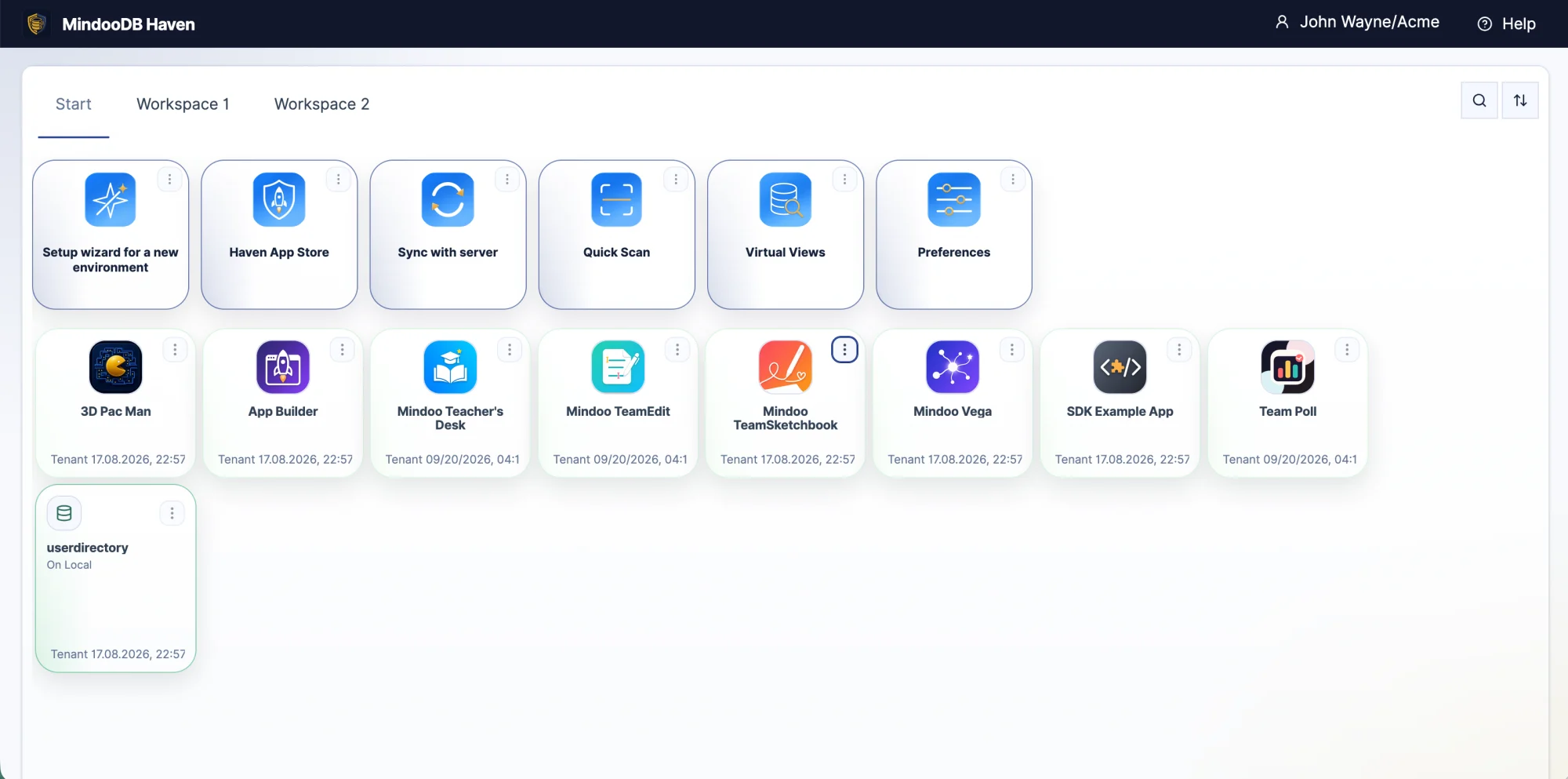
What confused her was the sidebar. You will still see it on a lot of the screenshots on this website: a navigation column on the left with the Haven views - databases, sync, preferences, the App Store - next to a workspace full of tiles on the right. Two ways of getting somewhere, side by side, and it was never quite obvious which one to use for what. Some things lived in the sidebar, some on the workspace, some in both. To us that was a feature. To somebody who just wants to open the class list, it was a question she should not have to answer.
So the sidebar is history. Everything now lives on the workspace, as tiles. One concept instead of two.
The first tab, Start, is fixed and built by Haven itself: every Haven view, every installed app - opened from there, it runs standalone and full screen - and every database. Nobody has to arrange it, and nothing on it can go missing. It is the complete inventory, which makes it the place developers and administrators go to find a database or a view, and the fallback for everybody else. The order of the icons is configurable - last used, by tenant or alphabetical - and the page is searchable, so the one database you need is a few keystrokes away rather than a scroll through all of them.
The other tabs are yours. That is where you put together the pages you actually work on - apps side by side, plus the content tiles: notes and text, web pages, Mermaid diagrams, YouTube videos. What you need is where you put it.
Workspace: undo for the layout
The Haven workspace is a set of pages with tiles you arrange freely: apps, databases, notes, web pages, videos. Freely arranging things also means freely disarranging them - a drag that lands one tile too far to the left, a resize you did not mean, a tile dropped on the wrong page.
Layout changes are now undoable. Undo and redo cover moving, resizing and rearranging tiles, so a gesture that went wrong is one step back rather than two minutes of putting things where they were.
Automatic arrangements. The three-dot menu of the workspace has three new actions that arrange the tiles of the current page for you: 50/50, 33/33/33 and 20/60/20. The last one is the one I use most - a narrow list on each side and the thing you are working on in the middle, the way a mail client or an IDE is laid out.
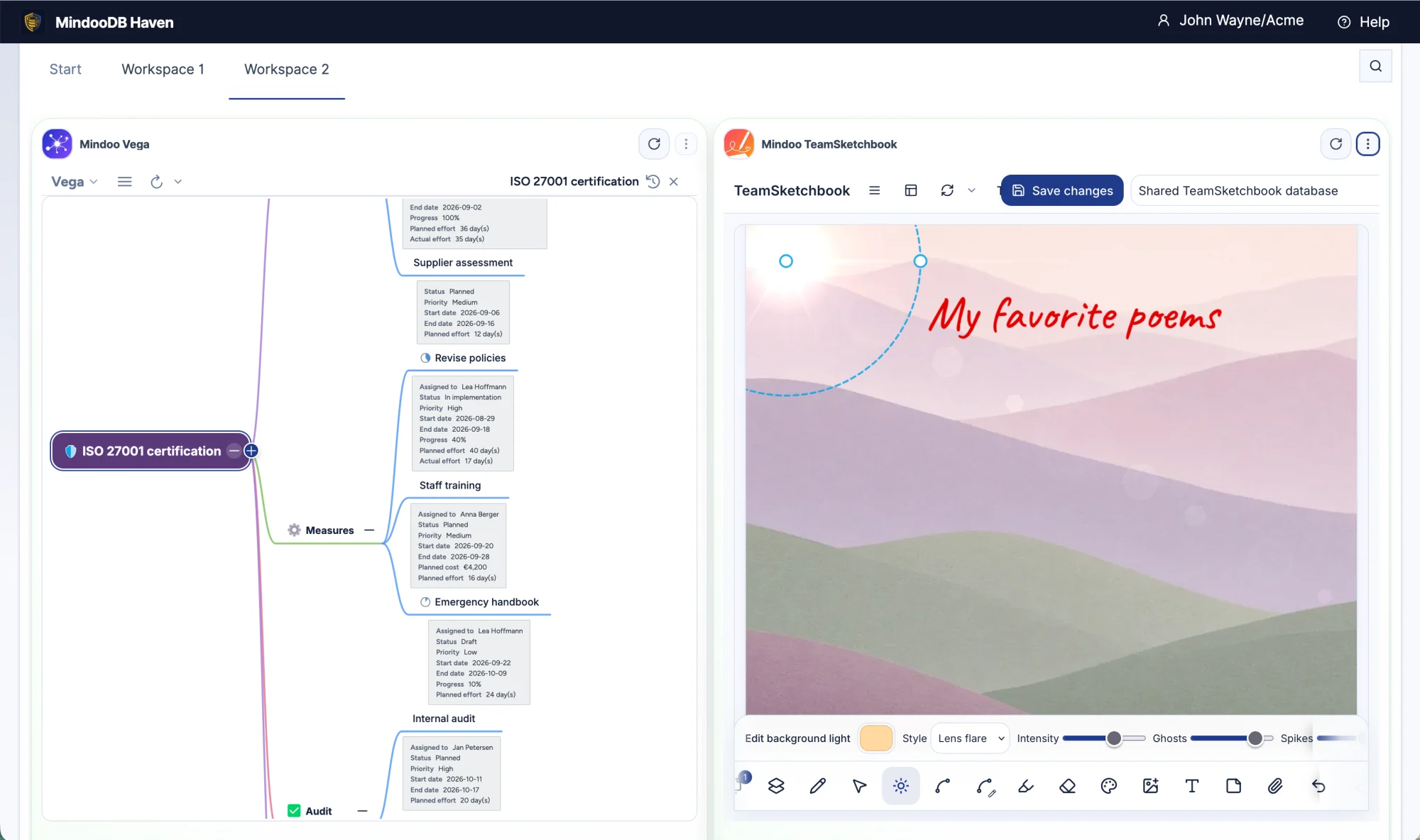
Maximise. Cmd+Shift+M on macOS or Ctrl+Shift+M on Windows and Linux maximises the tile that has the focus, as close to full screen as the window allows. The same shortcut puts it back into the layout exactly where it was. It is the fastest way to give a spreadsheet or a Gantt chart the whole screen for a minute without losing the page you built around it.
Draggable dividers. The line between two neighbouring app tiles can now be dragged to change their widths together - one gets wider, the other narrower - instead of resizing one tile and then fixing the other.
No more overscroll. Scrolling to the end of a list inside an app tile used to carry on into the workspace behind it, so the whole page moved when you only meant to reach the last row. Scrolling inside a tile now stays inside the tile. It is a tiny fix and one of the most noticeable, especially with a trackpad or on a tablet.
App SDK: focus, notifications, and drag and drop between apps
Three additions to the App SDK, all about apps behaving like good citizens of a shared screen.
Focus tracking. An app can now ask whether it is the surface the user is looking at - the focused tile on the active workspace page, or the app running standalone - and be told when that changes. It can also ask Haven for the focus, for example after the user picked this app from a list inside another one:
const focused = await session.hasHostFocus();
const unsubscribe = session.onHostFocusChange((focused) => {
  // pause an animation, stop polling, or decide whether to notify
});
await session.requestHostFocus();
Notifications. An app can ask Haven to show a notice, with the app’s own name as the headline. The obvious use is a long-running operation: an import, an export, a recalculation. Pass the same id again to update the notice in place instead of stacking a new one for every step:
const notice = await session.notify({ severity: "info", text: "Importing 1,240 rows…" });
// ...work...
if (!(await session.hasHostFocus())) {
  await session.notify({ id: notice.id, severity: "info", text: "Import finished", durationMs: 5000 });
}
The two go together on purpose. A progress notice is useful when the user has moved on to another tile, and noise when they are watching the progress bar in the app itself - hasHostFocus() is the check that tells the two apart.
Drag and drop between app tiles. This is the one that took the longest, because on the face of it, it cannot work. Two apps on the same workspace page run in two sandboxed iframes that cannot see each other, and the browser’s own drag and drop does not carry data from one sandboxed frame into another.
So Haven brokers the gesture. The source app binds a drag source and says what it offers - typed strings such as plain text, Markdown or JSON. When the drag starts, Haven takes it over, shows a ghost image that the app supplied as a PNG above all the frames, and follows the pointer across the page. For whatever tile is underneath, Haven asks that app whether it accepts the offered types at that point, so the target can say yes over its drop zone and no everywhere else. On release, the data is delivered to the target:
// Source app
session.drag.bindSource(cardElement, {
  offers: () => [
    { type: "text/plain", data: task.title },
    { type: "application/json", data: JSON.stringify(task) },
  ],
});

// Target app
await session.drag.setProfile({
  accepts: ["application/json", "text/plain"],
  onOver: ({ x, y }) => ({ accept: isOverDropZone(x, y) }),
  onDrop: ({ items }) => addCard(items["application/json"] ?? items["text/plain"]),
});
What crosses the page is strings and a PNG - no HTML, no code, and no access to the other app’s page. The SDK validates the payload before it leaves the app, and Haven validates it again on arrival. Mouse and pen start after a small movement; on touch devices a long press starts the drag, so lists still scroll normally. The SDK Example App in the App Store has a working demo of both ends.
The snippets are optional
The code in this article is there for developers who want to see how the features work. Nobody needs to write it.
Everything above is also in the SDK documentation and in our context files for coding agents, llms.txt and llms-full.txt, which we updated alongside the features. Those are the files the App Builder’s cloud agent reads before it writes a line. So a brief that says “count the votes so that nothing gets lost when two people vote offline”, “let people comment on a sentence in the protocol”, “show each order with its customer and its line items”, or “let me drag a task from this app onto the calendar app” is enough. The agent knows which counter, text cursor, nested query or drag API that means, and uses it.
App Builder: several developers, sharing, and copying an app
The App Builder shipped last week and has already grown in three directions.
Multi-user development. An app is rarely finished by the person who started it. The App Builder setup of an app can now be shared with other users, so a colleague can pick up where you stopped: send the next brief, look at the agent’s work, and publish the result - on the same repository and the same address.
Share the app. A new action sends the app’s address through the share sheet - mail, chat, whatever the device offers. When the recipient opens the link, Haven starts and walks them through the first-time setup if they do not have Haven yet, and then through installing the app, with the same dialog that shows its databases, permissions and network access before anything is installed.
Copy an app. If an app’s Git repository is public, the App Builder can copy its assets into a new project and use them as the starting point for another app. Somebody else’s polling app becomes the basis for your own voting wall, and the next brief refines it rather than starting from an empty template.
App Store: every app is a hosted bundle
The apps in the Haven App Store now use the hosted bundle mode that the App Builder introduced for its own apps. The app is downloaded into Haven and served locally rather than fetched from the web each time, which puts Haven in the middle of every request it makes. That is what enables the network allowlist: an app declares the addresses it needs, and anything else it tries to reach - a fetch, an external script, an image on a foreign server - simply does not happen, and Haven tells you which host was blocked.
For the store’s own apps, that turns “we promise this app does not phone home” into “this app cannot phone home”, which is the kind of promise that is worth more.
Teacher’s Desk: lessons in the calendar
Mindoo Teacher’s Desk had a timetable and a calendar, and they did not talk to each other enough. They do now.
Lessons appear directly in the calendar, alongside the rest of the school day - staff meetings, parents’ evenings, exam supervision, the trip on Thursday. One view of the week instead of two that have to be compared.
A lesson can be started from the calendar. Click it, and the lesson delivery view opens for that class and that lesson, with the attendance list and the plan ready.
Free-text fields for lesson content and materials. Not every lesson fits a structured plan. A lesson now has room for what was actually covered and for the materials used, as free text, which is also what you want to find again next year when the same unit comes round.
TeamSketchbook: covers and text
Mindoo TeamSketchbook, our collaborative drawing app for tablets and pens, got two additions.
Covers. A new sketchbook no longer has to start as a blank white page. The app now ships with a set of cover designs to choose from when you create a book - soft watercolours and gradients, leather and linen bindings, and calm landscapes - so a shelf of sketchbooks looks like a shelf of sketchbooks, and you can tell the project notes from the lesson sketches at a glance. Here is the current set:






























Click any of them to page through the full-size versions. The same covers are also available for the sketchbooks in Teacher’s Desk.
Text. Next to drawn strokes, a page can now hold text boxes. Handwriting is the point of a sketchbook, but a heading, a label on a diagram or a line of typed notes is sometimes the faster tool - and typed text stays readable for the colleague who cannot decipher your handwriting.
Faster everywhere, step by step
The last item is less visible and probably the one with the largest effect. We are going through Haven and the App Store apps one by one and moving them onto the MindooDB features described above - above all, serving searches and lists entirely from the document summary buffer instead of materialising documents to read a few fields from each. Together with the warmer sync, that makes opening a large list feel like opening a small one. Alongside that come the usual stability fixes that never make a headline and that you only notice when they are missing.
What this adds up to
None of the items here is a product launch. Together they are a platform that has become noticeably more complete in a month: data types that say what a value means, queries that follow references across databases, a sync that leaves the database ready to use, one way around Haven instead of two, a workspace that forgives mistakes, and apps that can cooperate on one screen without being able to see each other.
MindooDB is open source under the Apache 2.0 licence, and Haven Community is free for private and commercial projects at haven.mindoodb.com. There is more on how apps work at mindoodb.com/haven/apps, and everything else is at mindoodb.com.