Karsten Lehmann 18 May 2026 13:30:00
A signed contract gets handed over at a meeting. A handwritten note ends up on the desk after a customer visit. A printed invoice shows up in the post. The thing that needs to live inside your MindooDB document is not a digital file - it is a piece of paper.
Until now, the path from that piece of paper into Haven involved several apps and at least one detour: open the phone camera, take a photo, hop into a scanner app to crop and deskew it, export the result, send it to yourself, switch device, download, and upload as an attachment. A handful of round trips, often across two devices, and nobody actually enjoys doing it.
From today, it is one button.
We just shipped a new Scan document feature in MindooDB Haven, and - just as importantly - we shipped it as a capability of the MindooDB App SDK, so every app that can take attachments today gets the scanner for free tomorrow. The four sample apps that ship pre-configured in Haven (Mindoo Vega, Mindoo TodoManager, Mindoo TeamEdit and Mindoo TeamGrid) already expose it next to their normal Upload button, and any third-party app built on the SDK can opt in with a few lines.
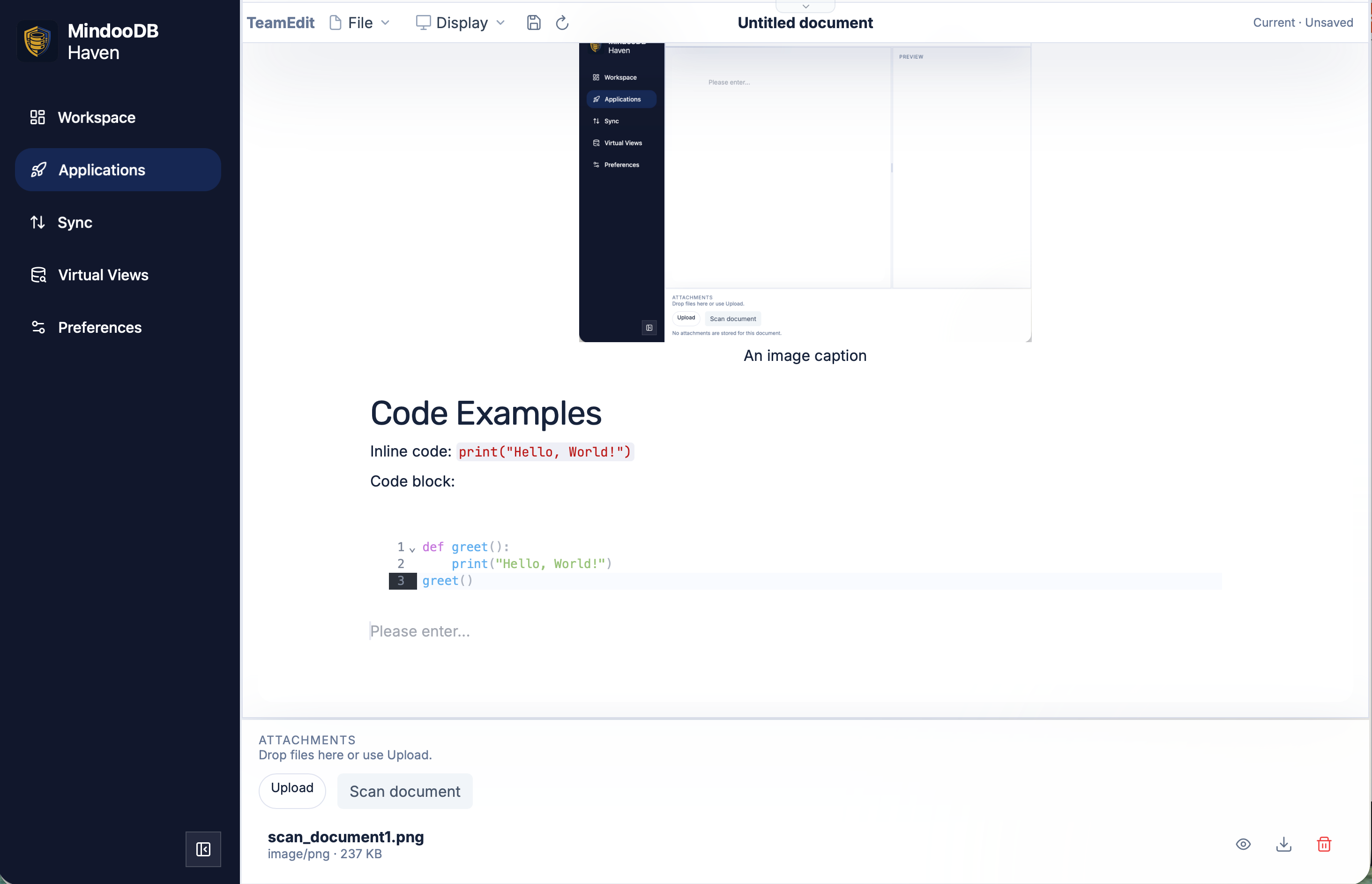
Press Scan document and Haven opens a single dialog with the whole flow inside it: pick an image source, watch the page corners snap into place, fine-tune if necessary, choose an output format, and either drop it onto the document or share it through the operating system.
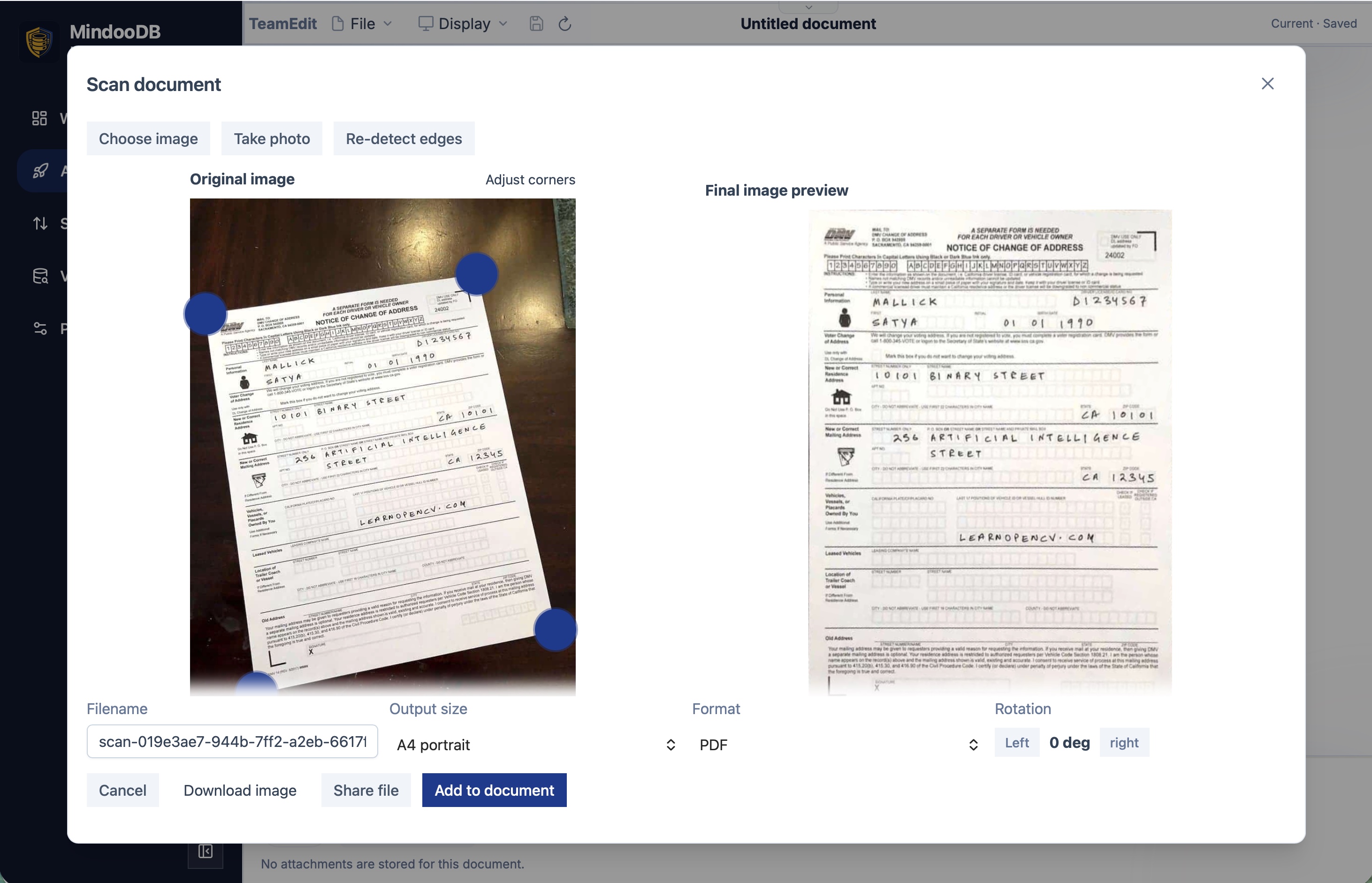
The three input modes cover the situations we actually see in practice. Choose image opens the OS file picker, which is the natural choice on a laptop where the photo already exists or where the page was scanned by a multi-function printer. Take photo opens the live webcam on a laptop or the rear camera on a phone or tablet, with the viewfinder filling most of the dialog so you can frame the page properly before the shutter click. Re-detect edges re-runs the corner detection on the current image without throwing the input away - useful when the auto-detected corners landed on a stray dark patch in the background rather than on the page itself, or when you have tweaked the corners by hand and want to start the snap from scratch.
The detection itself is where the interesting engineering sits. Document scanning needs real computer vision: convert the photo to grayscale, smooth it, run an edge detector, find contours, score them by area and “quadrilateral-ness”, pick the most plausible page outline, refine its corners, and feed the result into a perspective transform that maps the four-cornered trapezoid of the original photo to a flat, rectangular output. That is the kind of pipeline OpenCV does brilliantly, and the obvious answer would be to drop the official OpenCV.js into Haven and be done with it. We tried that first, and the obvious answer was the wrong one.
The default OpenCV WebAssembly build is more than ten megabytes - too much to load on every Haven start, and even more painful for every embedded app that might offer scanning. So we built our own slim OpenCV WebAssembly variant from source that contains only the pieces the scanner actually uses, and left everything else out at compile time rather than gating it at runtime. The result is small enough to live comfortably inside Haven’s bundle, and it is loaded lazily the first time you open the dialog, so it costs nothing for users who never scan a page.
Once the corners are detected, you can leave them alone or grab any of the four big blue handles and drag them. The original photo stays on the left throughout, the corrected final preview on the right rebuilds live as you move a handle, so it is immediately obvious when a corner is in the right place. Re-detect edges resets the handles back to the automatic guess if you would like to start over.
Three more controls sit below the previews, all of them honest to how a real document workflow works:
- Output size is the projection target. Free-form keeps the original aspect ratio of the detected quadrilateral. A4 portrait, A4 landscape, Letter portrait, Letter landscape and Square (1:1) lock the output to a fixed page geometry - the perspective transform stretches the deskewed page to those exact proportions, which is exactly what you want when the scan is going to be printed, archived next to other A4 documents, or compared to an existing template. We picked the formats most teams actually use; if there is a strong case for adding more (legal, A3, banker’s cheque), the format list is a tiny config in the SDK.
- Format decides what gets attached. PDF wraps the scanned page in a single-page PDF, which is the right answer for receipts, signed contracts and anything else that should look and feel like a document. PNG or JPEG export the bare image when you want to embed it into a markdown document, paste it elsewhere, or hand the raw pixels to another tool.
- Rotation flips the result in 90-degree steps. Most phone cameras get orientation right; the ones that do not can be corrected with two clicks.
Everything is local. The photo never leaves the browser tab. The OpenCV pipeline runs inside Haven’s WebAssembly sandbox on your machine, the perspective-corrected image is rendered onto an off-screen canvas, and the final bytes - PDF, PNG or JPEG - are produced right next to it before they are handed back to the app. That matters not just for privacy (the page may well be a confidential contract) but also for the same reason the rest of MindooDB stays local-first: scanning a check-in form on a flight or a customer site with no signal should just work.
The bottom row of the dialog has four buttons, and each maps to one real-world workflow.
Add to document is the primary path. The processed bytes flow through the same SDK attachments API the Upload button uses, so the scan becomes a perfectly ordinary MindooDoc attachment: encrypted on this device before sync, content-addressed in the attachment store, signed, chained, and visible in the same attachment list as everything else the document already has. There is no separate “scan attachment” type - the SDK does not need one, and downstream features like attachment preview, attachment download, and revision-aware historical attachment reads from the TeamEdit launch all just work on the result.
Download image writes the file straight to the browser’s downloads folder. Useful when you only wanted a scan, not an attachment - or when you are using Haven on a kiosk where you need to print it instead.
And then there is Share file, which is the only button on the dialog that is conditional. Haven detects at runtime whether the browser supports the Web Share API with file sharing (currently iPhone, iPad, and recent Safari on macOS - the other major browsers have not exposed file sharing yet) and only renders the button there. When it is available, pressing it hands the scanned file straight to the operating system’s native Share Sheet. From there you can drop it into iMessage, AirDrop it to a colleague, send it to a printer, attach it to an email in Mail or Outlook, push it to Files, or fire it at any third-party app that has registered for documents - without going through any upload at all, and without leaving Haven. On a phone in particular this is the difference between “I scanned something” and “I scanned something and sent it to my accountant in two taps”, which is the kind of difference that decides whether a feature gets used in practice or quietly forgotten.
A note for developers building on the MindooDB App SDK. The scanner is exposed through a simple call on the attachments surface - the app passes a target document and a few optional defaults (a suggested filename, the default output format, whether to start with the camera or the file picker), and the SDK returns whatever the user produced: either the id of the freshly attached MindooDoc attachment, or the bytes plus mime type if the user pressed Download or Share, or nothing if they cancelled. Apps that already have an attachment button can add a “Scan document” sibling in a few lines, exactly the way TeamEdit does in the screenshot above. As with every other SDK feature, the scanner is gated by the app’s data mapping in its application registration: an app that was granted attachment write on a database can scan into that database; an app with read-only access cannot. The connector enforces it; the app does not get to decide.
The deeper point is the same one that runs through every recent Haven and SDK update: a real productivity workspace lives or dies by how friction-free its everyday inputs are. End-to-end encrypted document storage is wonderful, but if getting a piece of paper into that storage means juggling three apps and two devices, the paper just stays on the desk. Pulling document scanning into the SDK, doing the computer vision locally on a slim, custom-built OpenCV core, and letting the result either become a signed MindooDB attachment or fly straight into the system Share Sheet is meant to close that gap.
Scan document is live in haven.mindoodb.com today and exposed through the MindooDB App SDK to every app you build. The SDK is open source on GitHub, the platform underneath is open source under Apache 2.0 at mindoodb.com, and the pre-configured sample apps in the Haven Applications page’s New dropdown are the fastest way to try the new button: open any document, look next to Upload, and point your camera at the nearest piece of paper.