Karsten Lehmann 12 September 2026 10:00:00
This series started as a joke and has been getting steadily more serious. Part one was an emulated x86_64 Debian VM inside UTM SE on an iPhone 17, which took 75 minutes to build the Docker image and 102 seconds to generate one server identity, and which I would ask you not to copy. Part two was an Orange Pi Zero 3W - 14 grams, eight ARM64 cores, 6 GB of RAM - which did the same build in 137.6 seconds and the identity in 649 milliseconds, and which was the first machine in the series I would actually deploy.
Part three is different in kind, and it is the one I have been most curious about. The host is not a computer somebody bought in order to run a server. It is a box that is already in the building, already powered on, and already doing a job.
It is the Wi-Fi router.
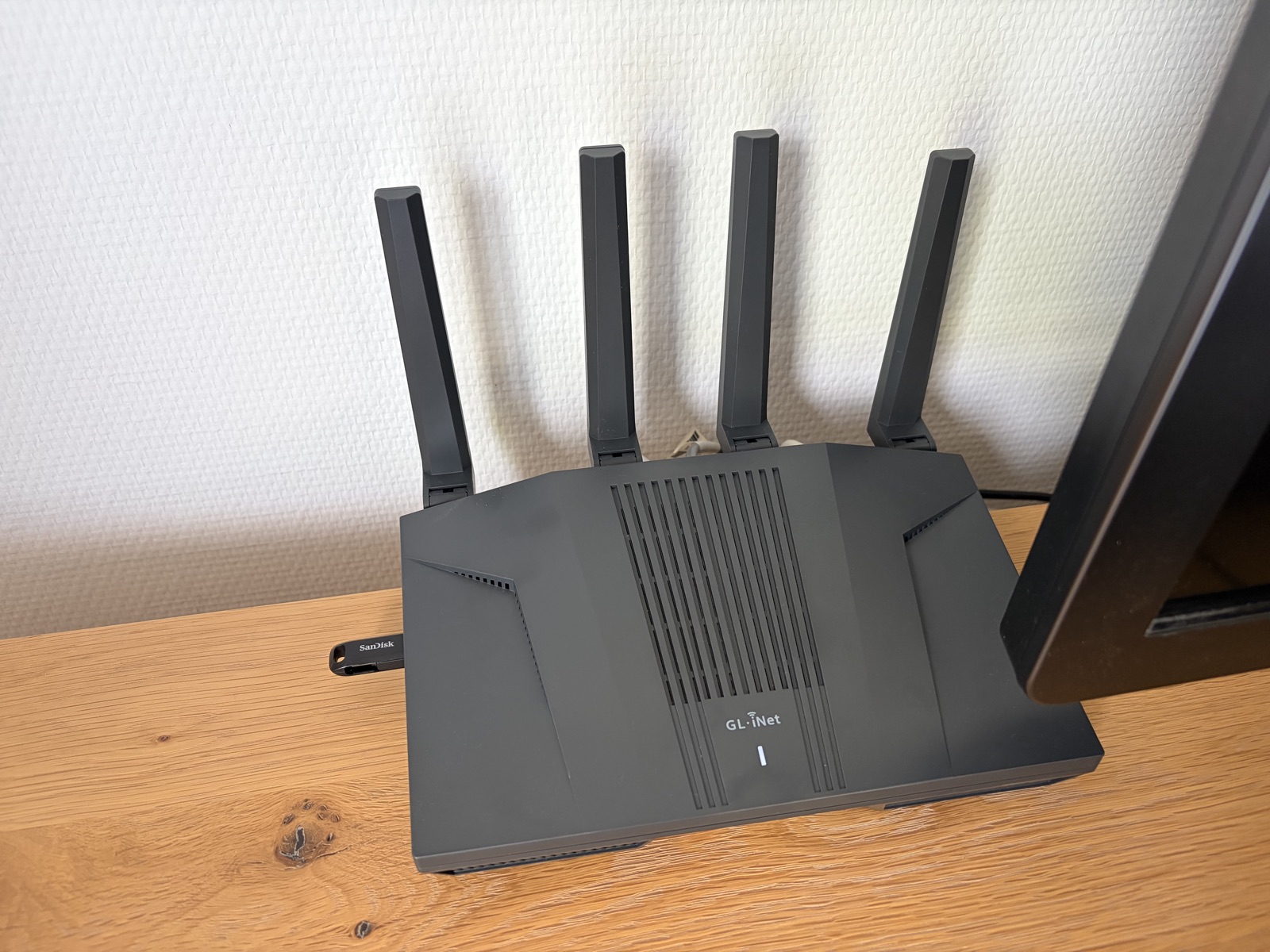
The cupboard you already own
The argument in part one was about where a server should live. A lot of the organisations we talk to - a doctor’s practice, a school, a small engineering firm - would like the honest answer to “where is our data?” to be “in that cupboard downstairs”, and digital sovereignty has turned that from a preference into a board-level question. The catch has always been that owning a server means owning, powering, cooling and looking after a server.
A router sidesteps the whole objection. It is already there. It is already on twenty-four hours a day, because the internet stops working when it is not. It is already the machine every device on the LAN can reach without anyone configuring anything, and it already has a name and an address that everybody in the building knows. If a MindooDB server can live inside it, then “run your own server” costs no additional hardware, no additional power, no additional rack unit and no additional box to trip over.
So when we drew up the shopping list of unlikely hosts, a decent router was on it. The one that arrived is a GL.iNet Flint 2, model GL-MT6000.
What is inside a Flint 2
The reason this particular router rather than any router is that its specification reads much more like a small single-board computer than like network equipment.
| Component | Specification |
|---|---|
| SoC | MediaTek MT7986AV, Filogic 830 |
| CPU | 4x ARM Cortex-A53, 64-bit, 2.0 GHz |
| Architecture | ARM64 (aarch64_cortex-a53) |
| RAM | 1 GB DDR4 |
| Storage | 8 GB eMMC |
| Ethernet | 2x 2.5 GbE + 4x 1 GbE |
| USB | 1x USB 3.0 Type-A |
| Wi-Fi | Wi-Fi 6, 4x4 on 2.4 GHz + 4x4 on 5 GHz |
| Wi-Fi gross rate | 1148 Mbit/s + 4804 Mbit/s |
| Switch / PHYs | MediaTek MT7531AE switch, 2x Realtek RTL8221B 2.5 GbE PHYs |
| Power draw | under 20 W |
| Bootloader | U-Boot |
| OS | OpenWrt-based (GL.iNet firmware) |
Most of that table is router business and irrelevant here. Four things on it are the reason this works at all: ARM64, 1 GB of RAM, 8 GB of eMMC, and a USB 3.0 port.
The eMMC is the unusual one. Consumer routers traditionally have flash measured in megabytes, sized for a firmware image and nothing else, which is why “install a database on your router” has historically been a non-conversation. Eight gigabytes is a different proposition, and the USB 3.0 port means a larger installation can simply have an SSD hung off it. Mine has a plain USB stick in it, which is where the repository and the data directory ended up.
The Filogic 830 platform also has dedicated hardware for network and Wi-Fi offloading and for crypto acceleration, which is the part that makes this more than a stunt: the routing work does not have to compete with the server for the four A53 cores in the first place.
And then there is the number that is not generous. 1 GB of RAM, against 6 GB on the Orange Pi and 2 GB even in the emulated VM on the phone. That is the constraint to keep in mind for everything that follows.
OpenWrt is not Ubuntu
On the Orange Pi the interesting part of the story was that there was no story: Ubuntu, Docker already installed, ./serversetup.sh, done. This time there was a story, and all of it came from the operating system.
OpenWrt is a Linux distribution built for machines with very little of everything. The shell is BusyBox ash, the userland is BusyBox applets, and the package manager is opkg. The first few commands I typed after logging in over SSH make the point better than a paragraph does.
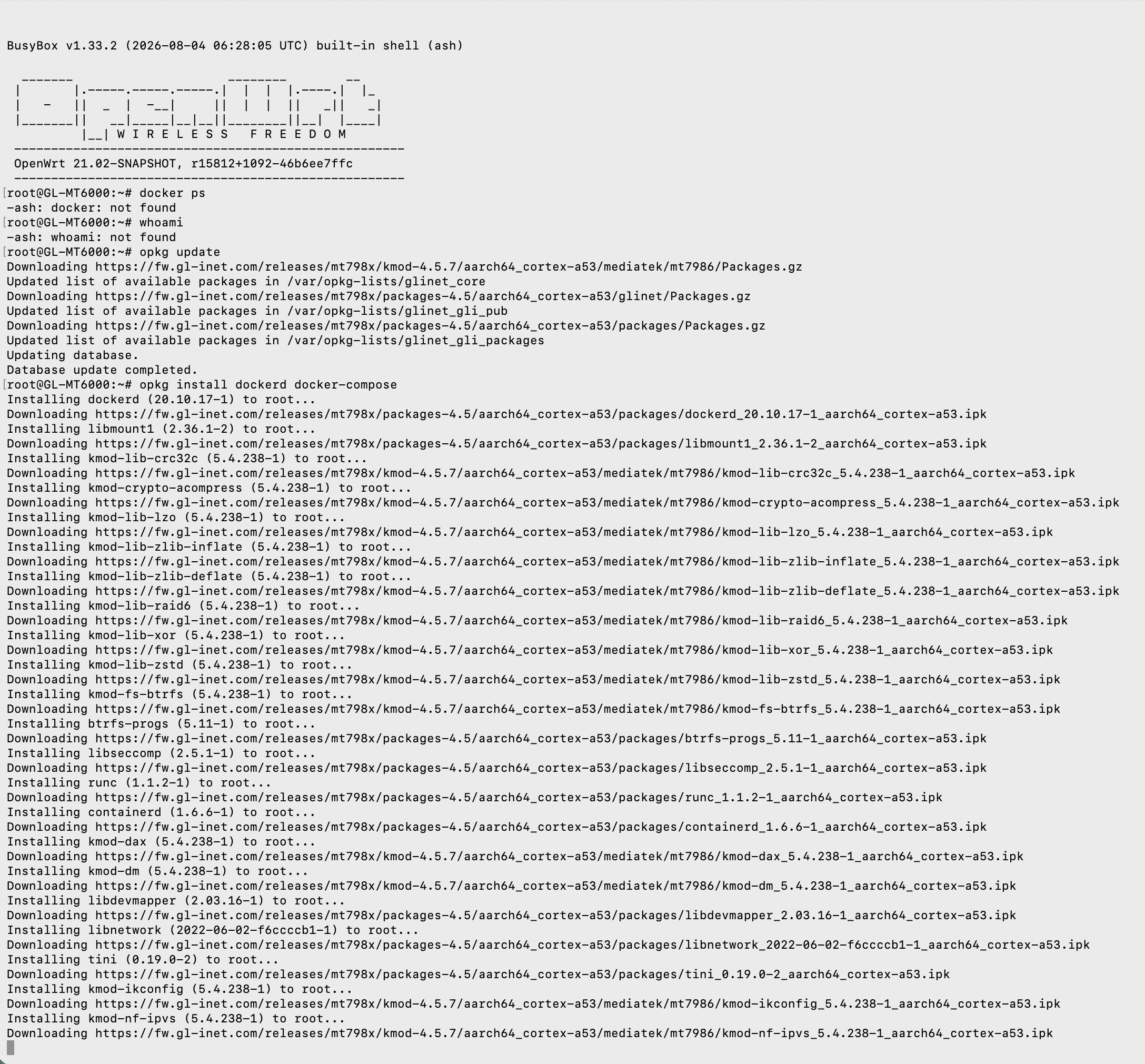
No Docker, which was expected. No whoami, which was not - the tool that answers “who am I” was not considered worth the bytes. There is exactly one user on this machine and it is root, which is also why the setup summary later reports a container runtime user of 0:0.
Docker itself is one opkg command away, though. opkg install dockerd docker-compose pulls dockerd 20.10.17, containerd, runc, libnetwork, btrfs-progs and a long tail of kernel modules, all prebuilt for aarch64_cortex-a53 on GL.iNet’s own package server. Note the version: 20.10 is old enough that this is the classic builder rather than BuildKit, and old enough that the command is docker-compose with a hyphen. Both of those turn up again in a moment.
The video that saves you an afternoon
Credit where it is due. If you want to try this yourself, the best practical walkthrough of the OpenWrt side of it is a video by CTech&Media: Smarthome direkt auf dem Router?! Home Assistant + Docker!. It puts Home Assistant on a GL.iNet router rather than MindooDB, which turns out not to matter in the slightest - the difficult part is getting Docker to behave on OpenWrt, and that part is the same whatever you intend to run in it. It goes through the opkg installation, moving Docker’s storage onto an external USB drive, and adding a swap file. The commentary is in German, but the audio track carries an English translation.
Two of its tips are worth repeating here, because they are exactly the two places where this hardware is tight rather than roomy.
The first is storage: move Docker’s data root off the eMMC before you build anything. Images, layers and the build cache are the bulk of the disk usage in this whole exercise, and none of it has any business being on a router’s internal flash - not for space, and not for the write endurance of a chip that is soldered to the board holding your firmware. On OpenWrt that is the data_root option of the dockerd service, pointed at the mounted USB disk.
That disk wants a real Linux filesystem, not what a USB stick ships with. Docker’s overlay storage needs ownership and hard-link semantics that exFAT and FAT simply do not have, so format it ext4 - mine is - and let block-mount bring it up at boot. On the GL.iNet firmware the automount puts it at /tmp/mountd/disk1_partN, which is the path in the shell prompt of every screenshot here.
The second is swap, which is the answer to the 1 GB of RAM. I will come back to that at the end, since it is really a question about running this thing rather than setting it up.
When the setup script met BusyBox
Back to the setup, then. With Docker installed, ./serversetup.sh - which failed on its very first line, for the most OpenWrt reason imaginable.
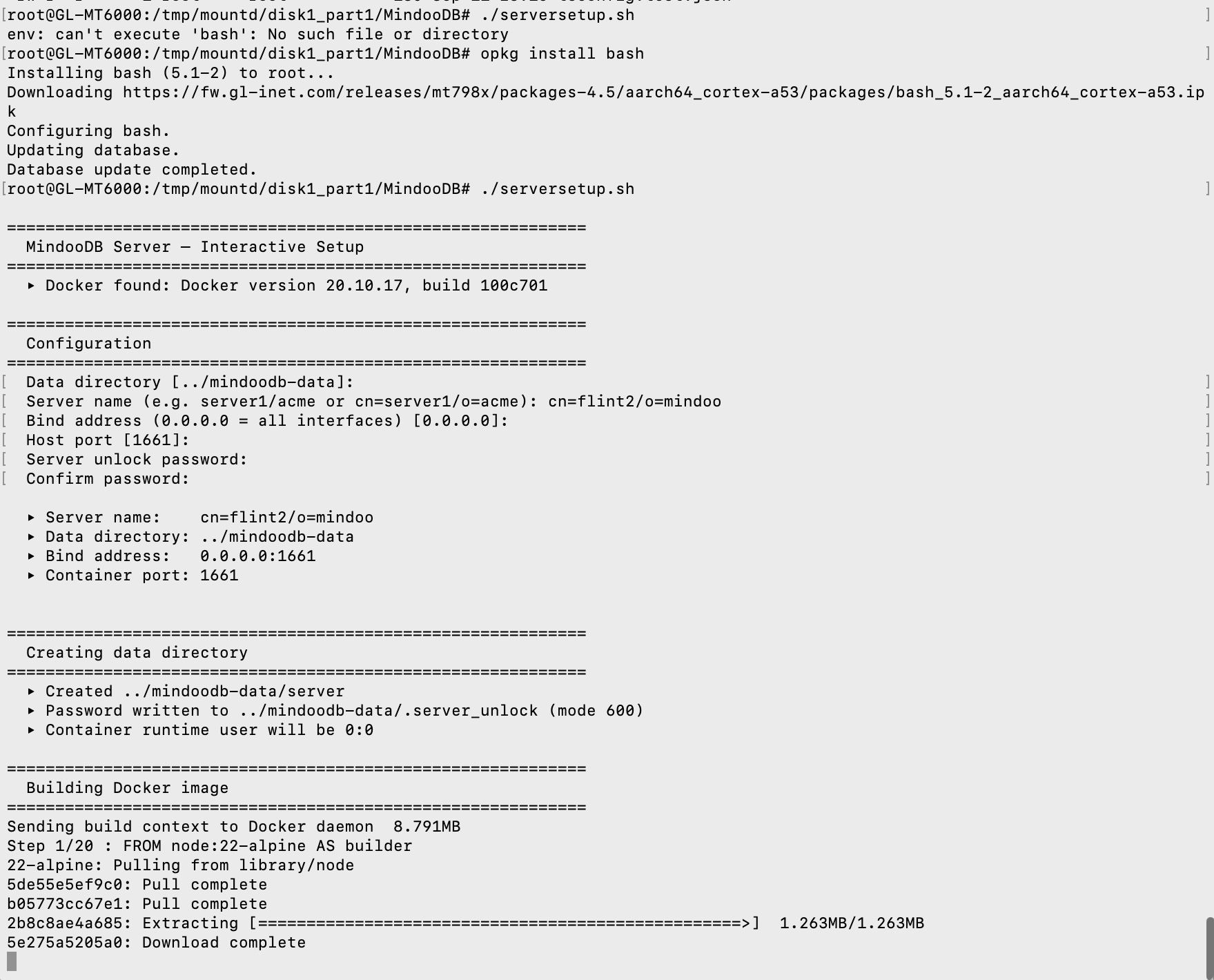
env: can't execute 'bash': No such file or directory. Our setup script is a bash script and OpenWrt does not ship bash - /bin/sh is BusyBox ash. opkg install bash fixes that, and from there the script behaved exactly as it does on a laptop: data directory, server name, bind address, port, unlock password. I called this one cn=flint2/o=mindoo and left it on 0.0.0.0:1661.
Then the Docker build started, and the first real pothole was waiting inside it.
Pothole one: the container could not resolve the npm registry
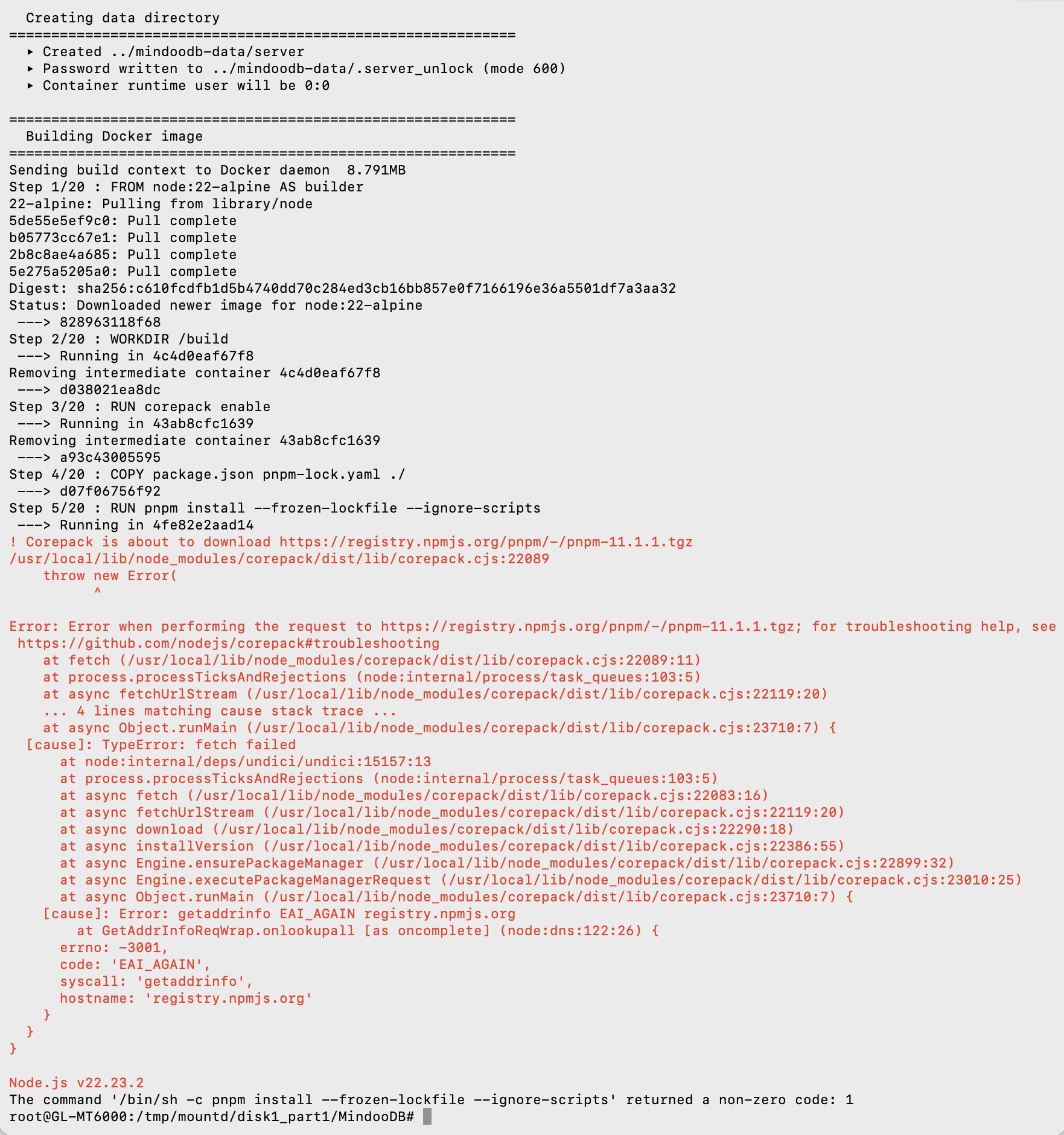
Step 5 of 20, pnpm install, and the diagnosis is right there at the bottom of the stack trace: getaddrinfo EAI_AGAIN registry.npmjs.org. Not a 404, not a TLS error, not a proxy - the container simply could not turn a hostname into an address.
This is a known rough edge of Docker on OpenWrt and on quite a few NAS boxes. During a build, RUN steps run on Docker’s default bridge network, and name resolution there depends on the embedded DNS forwarder handing queries to the host’s resolver. On OpenWrt, where DNS is dnsmasq bound in a particular way and the firewall is fw4/nftables rather than plain iptables, that handover often does not happen. The host resolves names perfectly well - it is the machine doing DNS for the entire house - and the container cannot resolve anything at all.
The fix is one flag, and it is the reason a router is the right place to hit this bug: give the build the host’s own network stack, and it inherits the host’s resolver.
docker build --network host -f Dockerfile -t mindoodb-server .serversetup.sh now does that by itself. On Linux hosts the image build uses host networking by default, with a comment in the script explaining precisely why, and an escape hatch for the rare case where you want the isolated default network back:
MINDOODB_DOCKER_BUILD_NETWORK=default ./serversetup.shWorth being clear that this only affects the build. Fetching dependencies from a public registry is not a step that benefits from network isolation, and the runtime network is decided separately - which brings us to the second pothole.
Pothole two: port 1661 answered nobody
After that the build finished, the server started, and docker ps looked entirely healthy. But nothing could talk to port 1661. Locally, curl http://localhost:1661/health got a connection reset; from the LAN, nothing.
The published port was there in the compose file and Docker had dutifully installed the DNAT rule for it. The problem is what happens next: on OpenWrt the packet filter is fw4/nftables, and it does not hairpin Docker’s port-publishing DNAT the way a stock iptables setup does. Traffic aimed at the host’s own address on a published port never reaches the container. It is the same wall that makes people run Portainer on these boxes with --net=host - Portainer is running on mine, which is how I recognised the symptom - and the answer here is the same.
If the router’s firewall will not carry traffic into the container’s network namespace, do not put the server in a separate namespace. Let it bind the port on the host stack directly:
services:
  mindoodb:
    network_mode: host
That is the whole fix. network_mode: host shares the host’s network stack, the server binds 1661 on the router itself, and there is no DNAT left for nftables to decline to hairpin.
One thing to know about that mode, because it bites as soon as you deviate from the default: Compose ignores ports: entirely when network_mode: host is set. On a bridge network the 1661:1661 mapping is what translates an outside port to the port the server listens on inside the container - remove the mapping and nothing translates anything. So if you want the server on some port other than 1661 you have to tell the server, not Compose:
services:
  mindoodb:
    command: ["--port", "8080"]
    network_mode: host
The container’s entrypoint runs server.js --data-dir /data and the server’s own default is 1661, which is why the plain version above needs no command line at all. Our script writes one anyway - harmless, and it saves you this paragraph if you ever change the port.
serversetup.sh now writes that override for you. It detects OpenWrt by looking for /etc/openwrt_release, defaults the runtime network to host when it finds it - or when an existing docker-compose.override.yml already uses host networking - and defaults to bridge everywhere else, which is what you want on a VPS or a laptop. It asks either way, so nothing happens behind your back, and the prompt can be skipped in automation:
MINDOODB_DOCKER_NETWORK=host ./serversetup.shThat is the whole delta. Two networking flags for a router-class Linux, both now handled by the script, and no change whatsoever to MindooDB itself. If you have been meaning to try one of these boxes, you get the fixed version.
An identity in 1661 milliseconds
With the build through, the setup does the most cryptographically expensive thing in the entire process: it generates the server’s own identity.
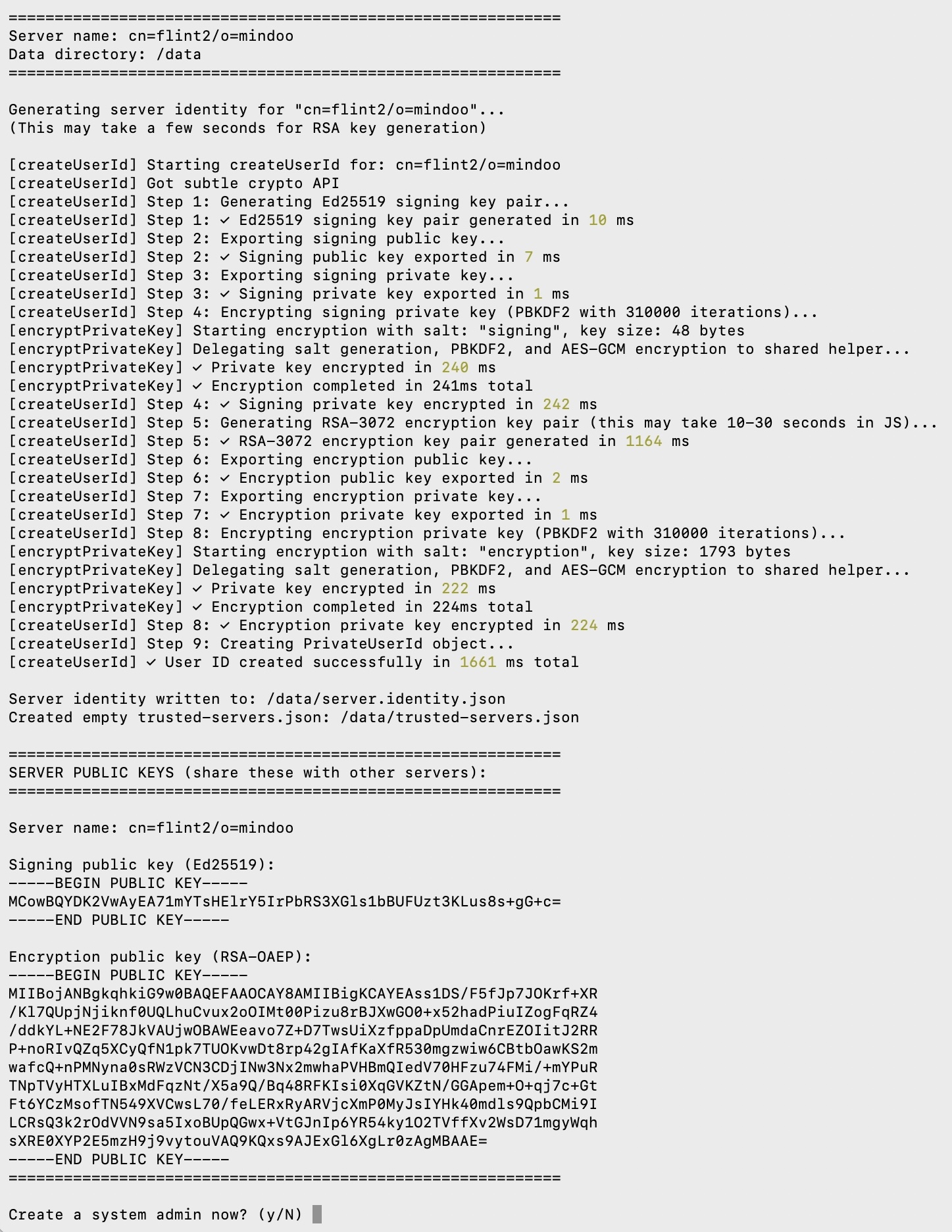
1661 milliseconds - which, on a server listening on port 1661, is the kind of coincidence you do not get to arrange.
Put next to the other two machines in the series, the interesting thing is how boring the number is:
| Step | iPhone 17, emulated x86_64 | Orange Pi Zero 3W, 8 cores | Flint 2, 4x A53 at 2.0 GHz |
|---|---|---|---|
| Ed25519 signing keypair | 277 ms | 6 ms | 10 ms |
| RSA-3072 encryption keypair | 46,477 ms | 377 ms | 1164 ms |
| PBKDF2, 310,000 iterations | ~28,000 ms | 128 ms | 240 ms |
| Server identity, total | 101,863 ms | 649 ms | 1661 ms |
The router is about two and a half times slower than the Orange Pi and about sixty times faster than the phone was while interpreting x86_64 instructions. Both of those are exactly what you would predict. The A53 is an efficiency core and the Orange Pi has a pair of Cortex-A76 performance cores to throw at a job like RSA key generation, so a factor of two or three is the honest cost of running on the smaller CPU - and it lands the router firmly in “you will not notice” territory, because this is a one-off. The factor of sixty against the phone is not a comment on the phone at all: the iPhone’s own cores are far quicker than anything in this table, and every one of those 102 seconds went on emulating a foreign instruction set with no JIT to soften it. RSA key generation is a hunt for large primes and partly a matter of luck, which is why the system administrator’s identity, the same work over again, came in at 2188 ms rather than 1661.
I did not get a headline build time this time, because Docker 20.10’s classic builder does not print one and the Dockerfile has gained a step since part two. So there is no fair number to put beside the phone’s 4539.4 seconds or the Orange Pi’s 137.6. What I can say is that the twenty-step build, TypeScript compile included, completed on a router with 1 GB of RAM and no swap file. That compile is the hungriest moment in the whole exercise, and it is the best argument I have for adding the swap the video recommends. If I were doing this for real rather than for a blog post I would sidestep the question entirely, build the image on a laptop and docker load it onto the router, which is what you would do on any small host and costs nothing.
The system administrator, and who may create a tenant
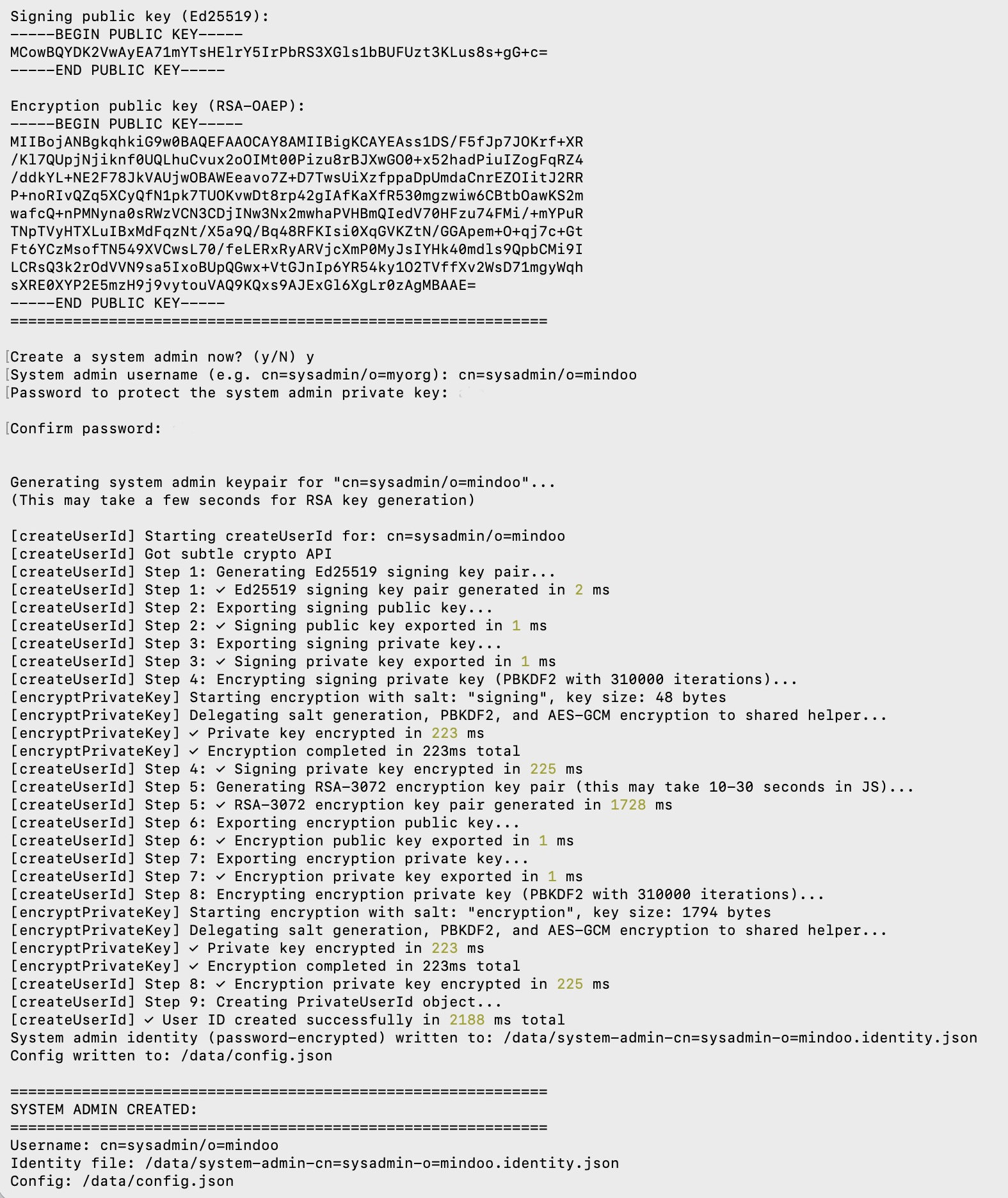
The setup then offers to create a system administrator, which is a second identity and therefore a second round of the same key generation. I called it cn=sysadmin/o=mindoo.
A system administrator is the superuser of the server, not of anybody’s data - it holds no key that decrypts anything. Its job is the handful of /system/* routes: creating and removing tenants, changing the server configuration, wiring up sync to other servers. Which of those routes a caller may use is decided by a capability list in config.json, matched per HTTP method and path against the caller’s username and signing key, so “may create tenants whose name starts with demo_” is as easy to express as “may do anything”.
The default is that only the system administrator may create a tenant. As on the Orange Pi, I used the open variant that our public demo server runs instead: one rule granting the wildcard principal { "username": "*", "publicsignkey": "*" } on POST:/system/tenants/*, so anyone on the LAN may publish a tenant to it. That wildcard is deliberately narrow - it unlocks tenant creation and nothing else, not listing tenants and not editing the config - but it belongs on demo and test machines, not on a production server. Both variants are written out in the server README.
Then the script writes the docker-compose.override.yml with the host-network override from the previous section in it, and prints what it built.
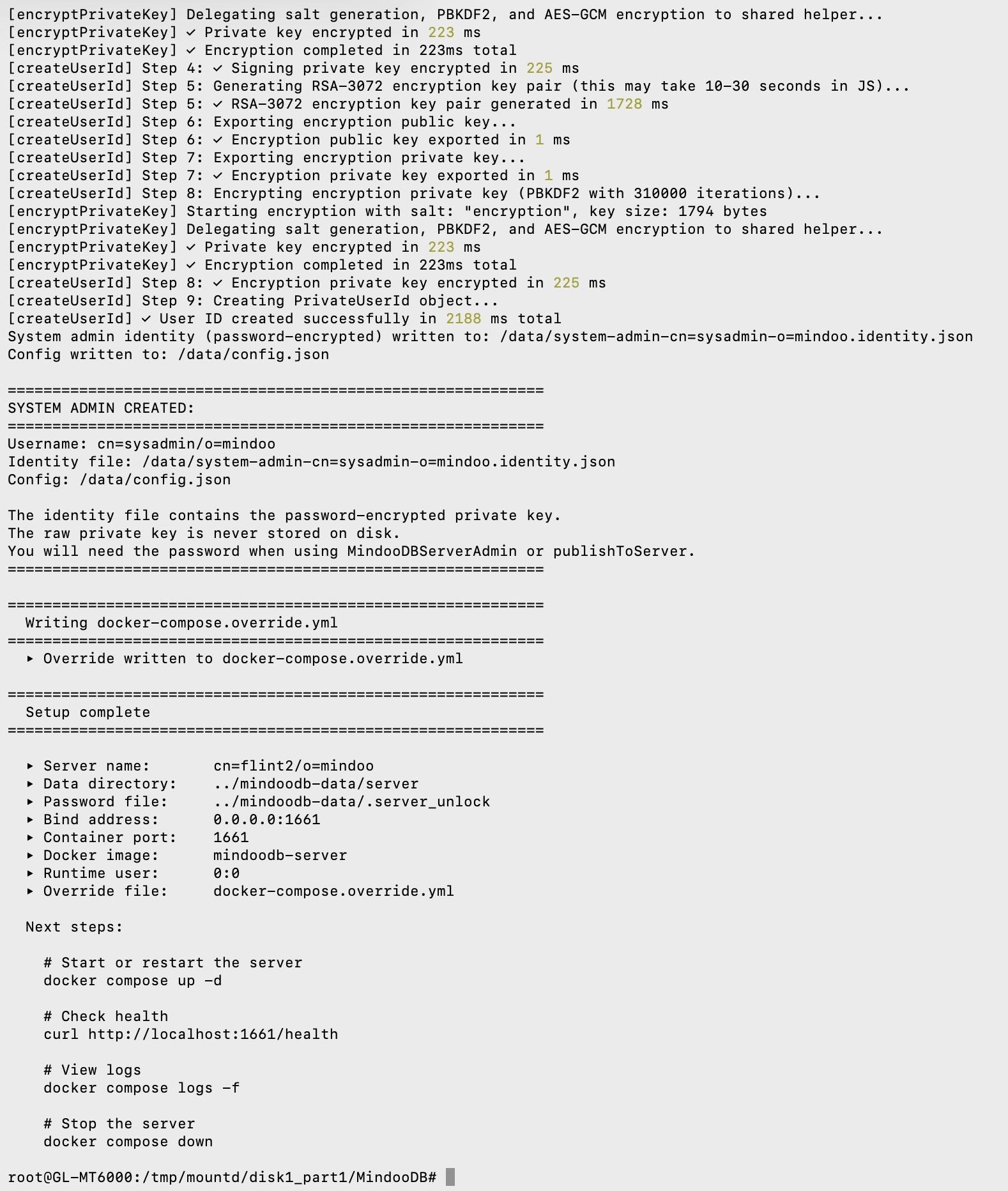
Listening on port 1661
docker-compose up -d, then the logs. Hyphen, because this is Docker 20.10.
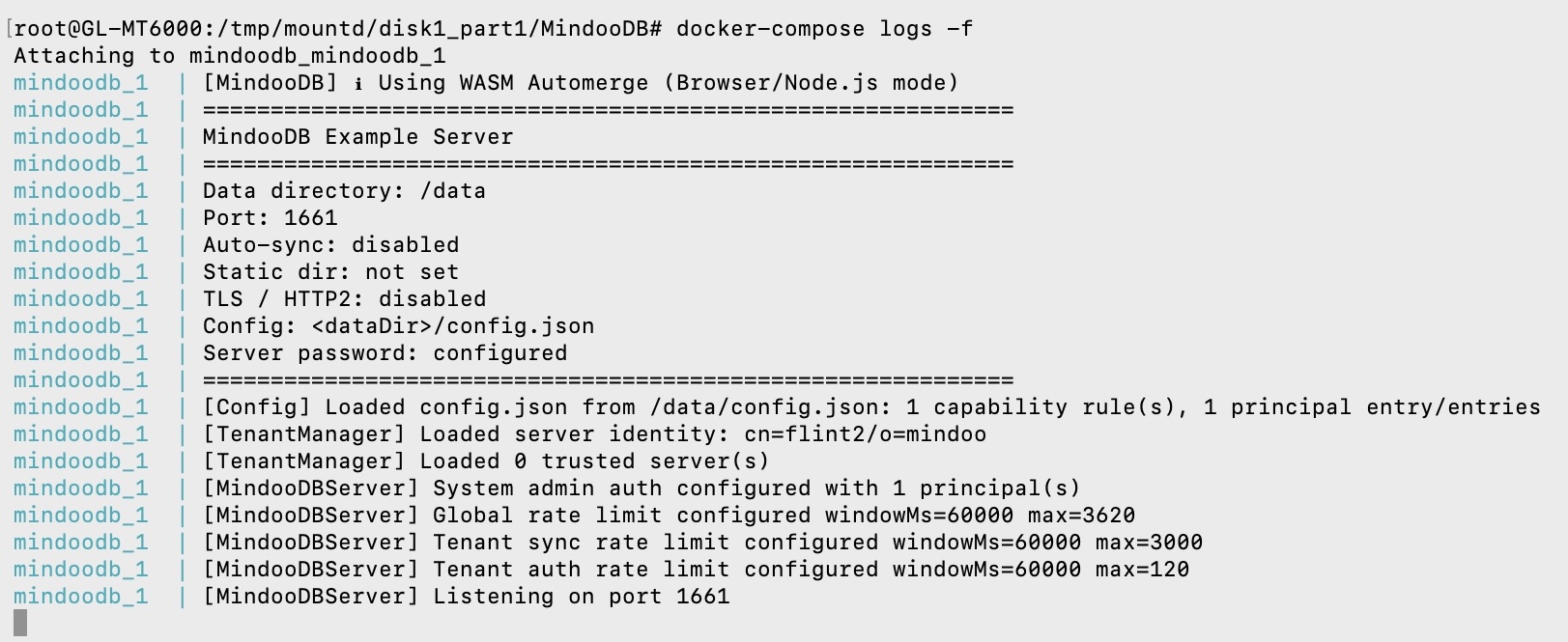
Server identity loaded, one system-admin principal, rate limits in place, zero trusted servers because this one has no peers yet, listening on 1661. A complete MindooDB server, inside the thing that hands out the Wi-Fi.
The first line of that log is the reason none of this required porting work. Using WASM Automerge (Browser/Node.js mode): the component most likely to need an architecture-specific build - the Rust CRDT engine that merges concurrent edits - is loaded on Node.js as WebAssembly rather than as a compiled native module, and WebAssembly is portable bytecode. The same artefact that runs on a laptop runs here. Everything above it is JavaScript in a Node.js container. Nothing in the stack knows or cares that it is on an MT7986AV, which is why the only two problems in this entire article were about networking rather than about MindooDB.
Handing it a tenant
The rest happens in the browser. I opened Haven at haven.mindoodb.com - the live, hosted one - went to Preferences → Tenants and pressed Push to server.
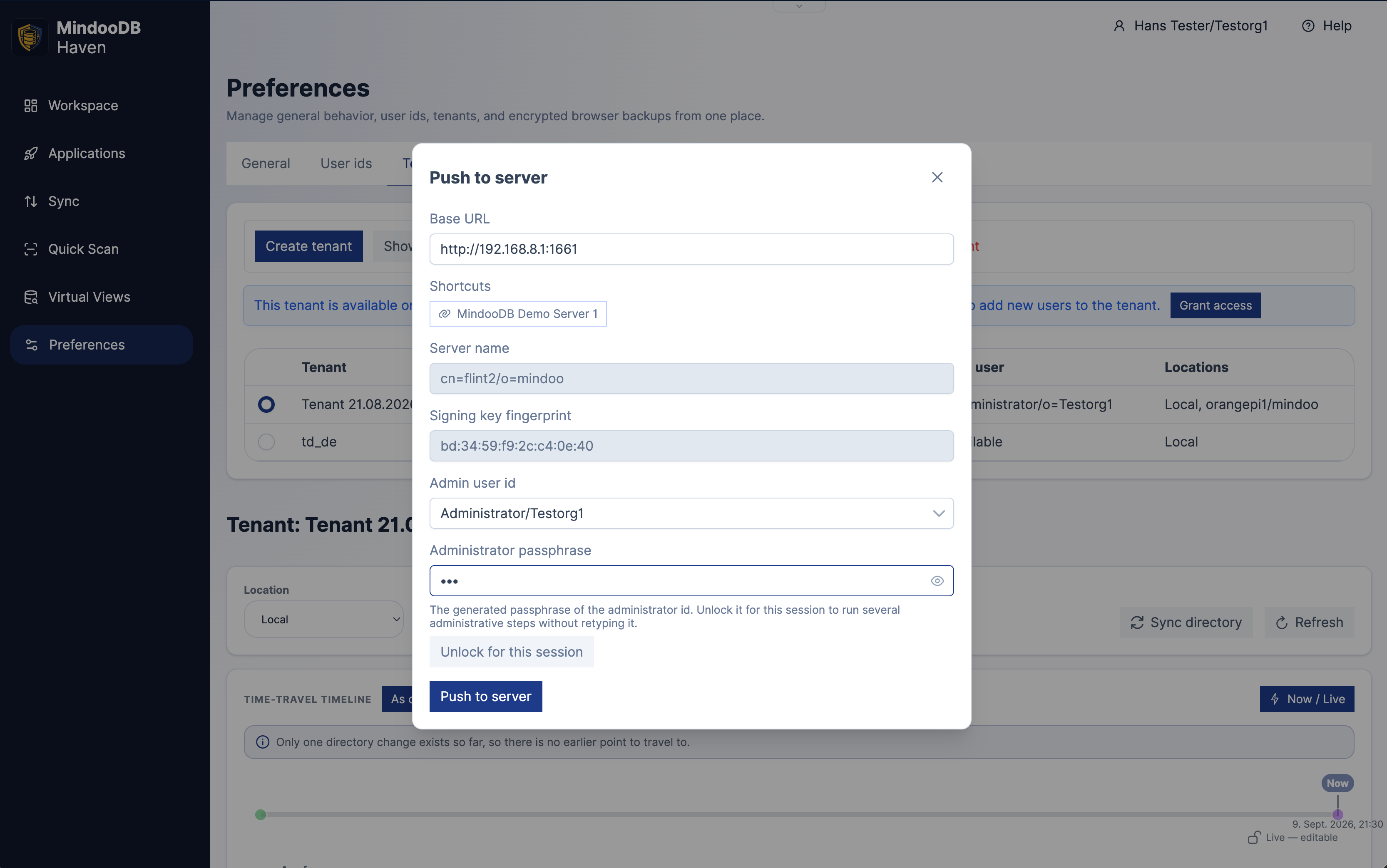
The only thing I typed was http://192.168.8.1:1661, and that is the quiet advantage of this host over every other one in the series. On the Orange Pi I installed the Avahi daemon so the board would announce itself as orangepi.local, because otherwise I would have had to remember a DHCP lease. A router has no such problem: 192.168.8.1 is the LAN address of every GL.iNet box out of the tin, it is the default gateway of every device on the network, and it is not going to change. The server’s address is the one address in the building that everybody already knows.
Haven fetched the server’s public identity from it, showed me the name it claims to be and the fingerprint of its signing key to check, and after the administrator passphrase it registered the tenant. The administrator it asks for is the tenant’s own - Administrator/Testorg1 - not the server’s, which is exactly what the open tenant-creation rule above buys you.
The fingerprint deserves a pause, because publishing the tenant writes this server into its trusted-witness list. From then on the server stamps each arriving entry with the time it accepted it and signs that receipt, and every other device checks the signature against that key before believing the timestamp. It is what stops somebody with a backdated laptop clock from slipping a change past an access rule that had already been withdrawn.
The witness key is not the root of trust, though, and the root of trust never goes near the router. That is the tenant administrator’s signing key. Everything in the directory database is signed with it: the access control policies and rules, the groups, the grants that make a particular device part of a particular person’s account, and the Haven policies that install apps and set up the Sync page for a new joiner. Every client verifies those signatures itself before acting on any of it, so a rule or a policy that does not carry the administrator’s signature is ignored no matter which server handed it over. The trusted-witness list is itself one of those admin-signed entries - which is why registering a server is an act of tenant administration, and not something a server can arrange for itself.
Several thousand entries, over its own Wi-Fi
Then the Sync page.
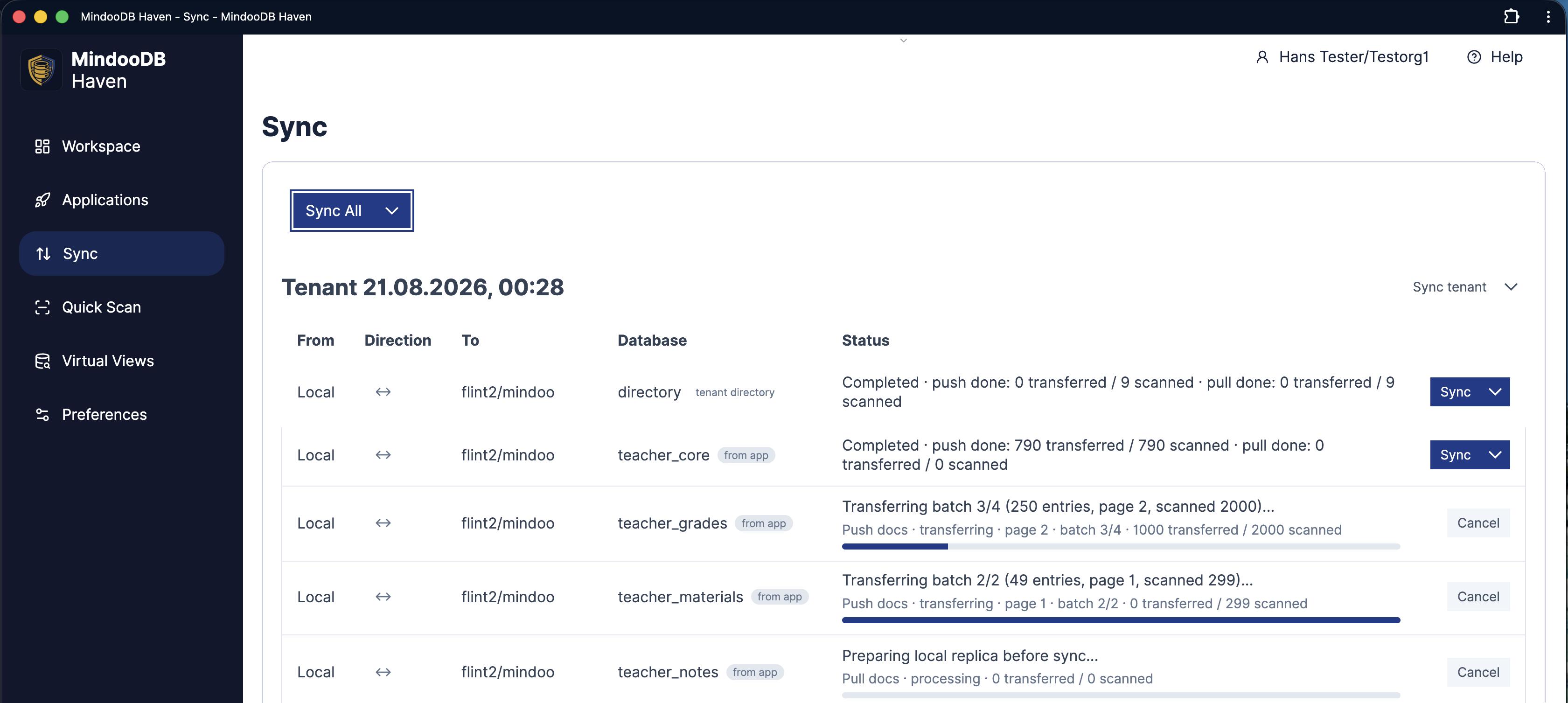
The tenant is a Mindoo Teacher’s Desk demo data set, which is useful precisely because it is not small: the tenant directory, a class and course database at 790 entries, a grades database going up in batches of 250, several hundred materials with their attachments, and the lesson notes behind them. A few thousand entries in total, pushed from the laptop to the router over the router’s own Wi-Fi - which is a slightly recursive thought, since the packets carrying the data and the machine storing it are the same piece of plastic.
Every bar in that screenshot is ciphertext. The Flint 2 is storing it, indexing the envelopes, chaining the history and stamping each entry with a signed witness receipt, and it cannot read a single word of any of it.
Look at the tenant list in the previous screenshot and you will see why that matters more than it sounds: the same tenant is listed at Local and orangepi1/mindoo, and now flint2/mindoo as well. A Haven client is not tied to one server. The Sync page keeps a row per database per server, each with its own direction and schedule, so the same encrypted tenant can live on the router in the room, on a small board upstairs, and in a hosted environment, without any of them being the authority. Which one holds your data stops being a question about trust and becomes a question about latency and physics.
Would I actually do this?
More than I expected to, with three caveats stated honestly.
The 1 GB of RAM is the real ceiling, not the CPU. Four A53 cores at 2.0 GHz relay encrypted entries perfectly happily, and the Filogic 830’s offload engines mean the routing does not fight the server for them. Memory is the resource that would decide how many tenants and how much concurrent sync this box is comfortable with, and it is the number I would size against.
Which is where the other tip from the CTech&Media video comes in: a swap file on the USB drive. I have not set one up yet - everything in this article ran on the bare gigabyte - but I am going to, and the reason is the whole premise of the article. MindooDB is not the only thing on this box. Portainer is on there too, the router is of course still routing, and the entire appeal of this host is that it was already doing a job before I turned up. That is a much better argument for a server than an idle machine is, and it is also exactly the situation in which one gigabyte gets crowded.
A gigabyte or two of swap will not make a router quick, and it is not a substitute for memory you actually need. What it does is change the failure mode. Without it, a spike - a TypeScript compile, a first sync of a large tenant, two clients pulling at once while Portainer redraws itself - ends with the kernel killing whichever process it likes least, and you do not get to pick. With it, the same spike ends with the box being slow for a minute. On a machine whose baseline is comfortable and whose peaks are rare, that is the trade you want. Put the file on the USB disk rather than the internal eMMC, for the same wear reason as everything else.
Everything that grows goes on the USB port - Docker’s data root, the MindooDB data directory, and the swap file when it arrives. Mine used a stick, which is fine for a blog post; for anything permanent it would be an SSD, for capacity as much as for endurance. The bonus is what it does to maintenance: once the database is not on the internal flash, a firmware upgrade becomes something that happens to the router rather than to your data. Plan for sysupgrade all the same, because opkg packages do not survive it - Docker, bash and the rest have to be reinstalled afterwards.
And treat it as an appliance, not a workstation. Build the image elsewhere and load it. Do not install a compiler on your gateway. The router’s job is to be the box that is always on, in the right place, with the right address.
Because that is what it is genuinely good at, and it is the thing no mini PC on the shopping list can match. The Orange Pi proved that a MindooDB server needs almost no hardware. The Flint 2 proves something more practical: it may need no additional hardware at all. The device that is already in the cupboard, already powered, already reachable at an address everyone knows, can be the server too.
For a small practice or a two-classroom school, “in that cupboard downstairs” now has an even shorter version. It is the box the internet already comes out of.
And none of this changes who can read anything. Content is encrypted on the device before it is stored, so whoever operates the server - including us, when that is us - holds ciphertext and public keys, and the keys never leave your devices. Which is what makes the choice of host a genuinely free one. Running a server is real work, and for most teams it is not the work they are in business to do; MindooDB Cloud is the same server, run by us, as a managed home for every Haven app - the details are on the pricing page. Self-hosting stays free and open source either way, whether the machine is a data centre, a drawer, or your access point.
Which leaves me, for the first time in this series, without the next machine picked out. A phone, a board the size of a stick of gum and the router seemed like a reasonable arc, and I am not sure what tops a device that was already in the building doing something else. So this time the invitation is the whole plan: if you have a candidate - the more awkward, the better - I would genuinely like to hear about it.
MindooDB is open source under the Apache 2.0 licence, and Haven Community is free for private and commercial projects at haven.mindoodb.com. Everything else is at mindoodb.com.